ZUUL Guide
Step-by-step help for residents and guest members.
Choose what you’re trying to do, or search the guide.
Try: create pass, pre-approved guest, notifications, forgot password
What are you trying to do?
Log in / Create account
Get started with your ZUUL account
Create a pass
Send a visitor pass to your guest
Pre-approved guests
Manage your pre-approved guest list
Manage passes
View active, sent, and archived passes
Parental controls
Manage household member permissions
Settings & profile
Update your account preferences
On this page
Account Setup
People & Lists
Preferences & Help
Account Setup
Account Setup
Login
Login
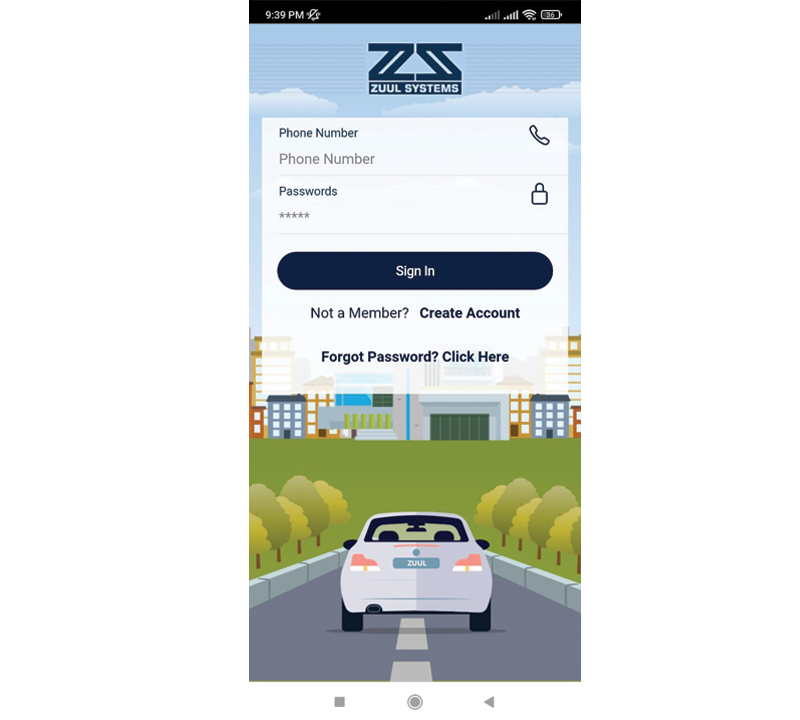
Logging in is simple, too. Enter your phone number and password. Then, press the Sign In button.
Account Setup
Create Your Profile
Create Your Profile
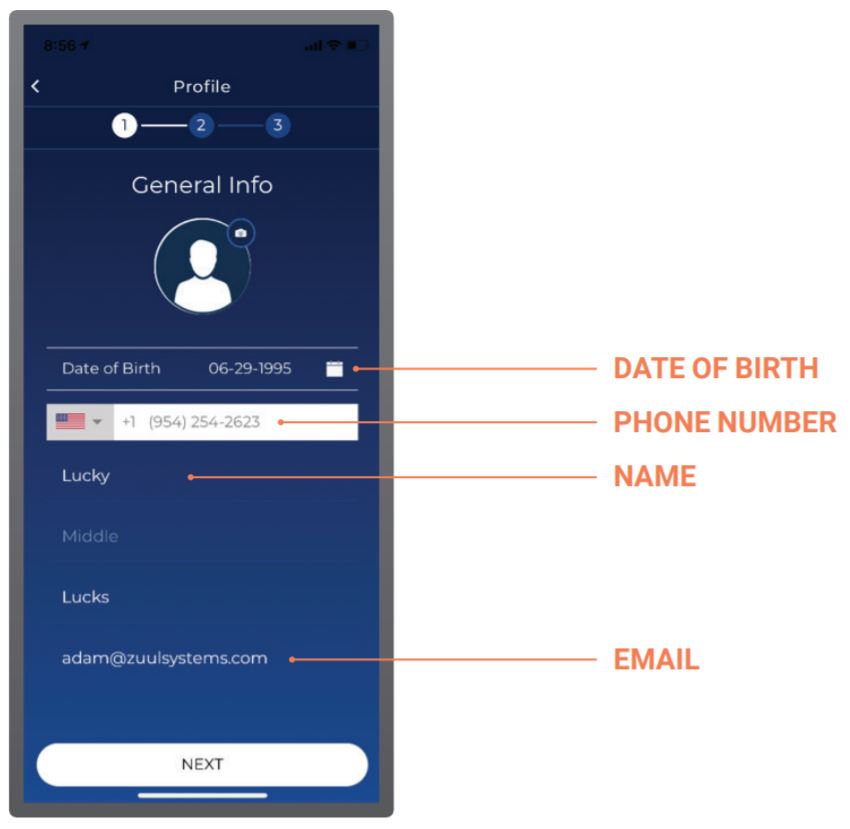
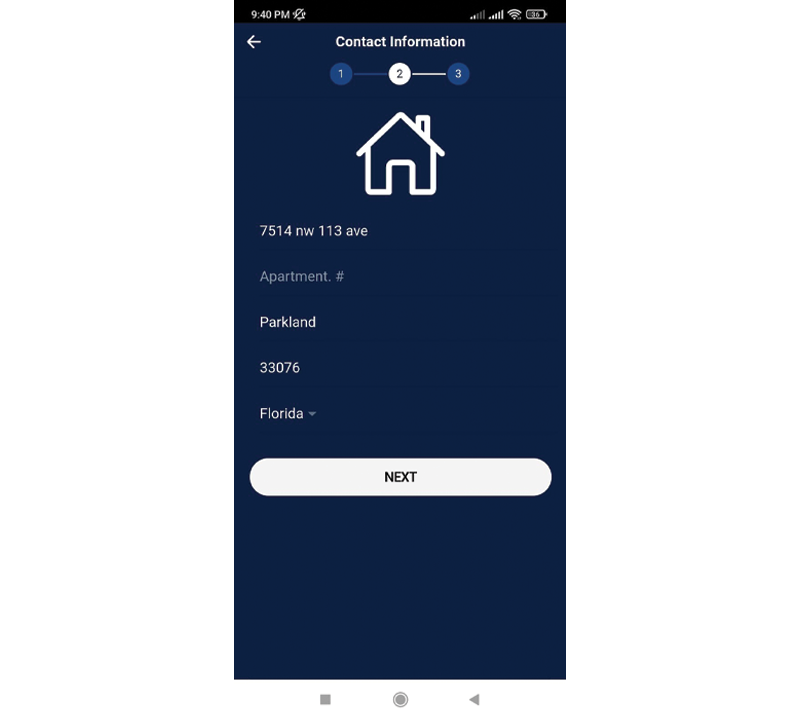
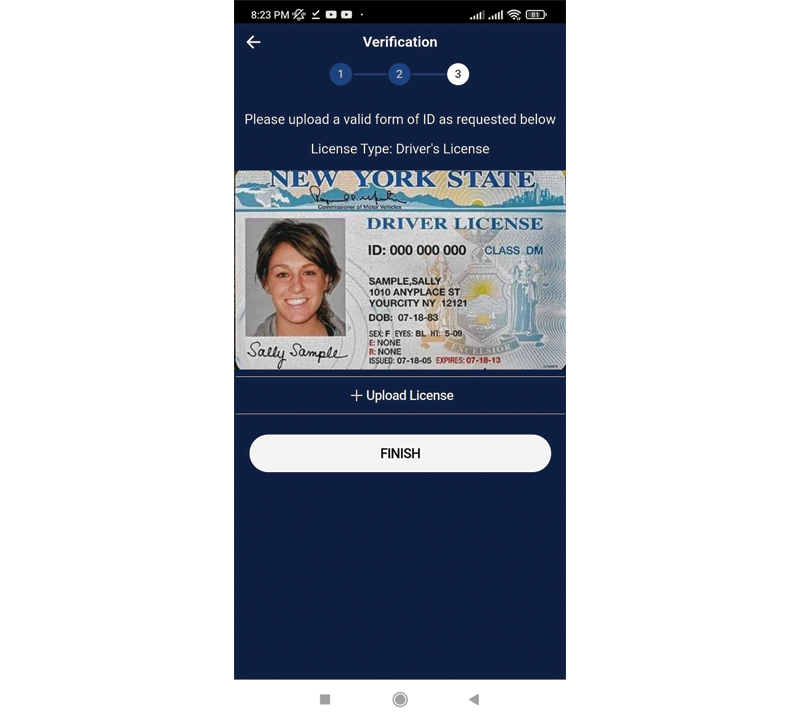
Your profile can be created in only three easy steps.
General Information
First, fill out your general information.
Contact Information
Next, fill out your address.
Upload License
Press the Upload License tab and choose how you want to upload your image, by camera or gallery. Select your image and press the Finish button.
Next up:
Account Setup
Dashboard
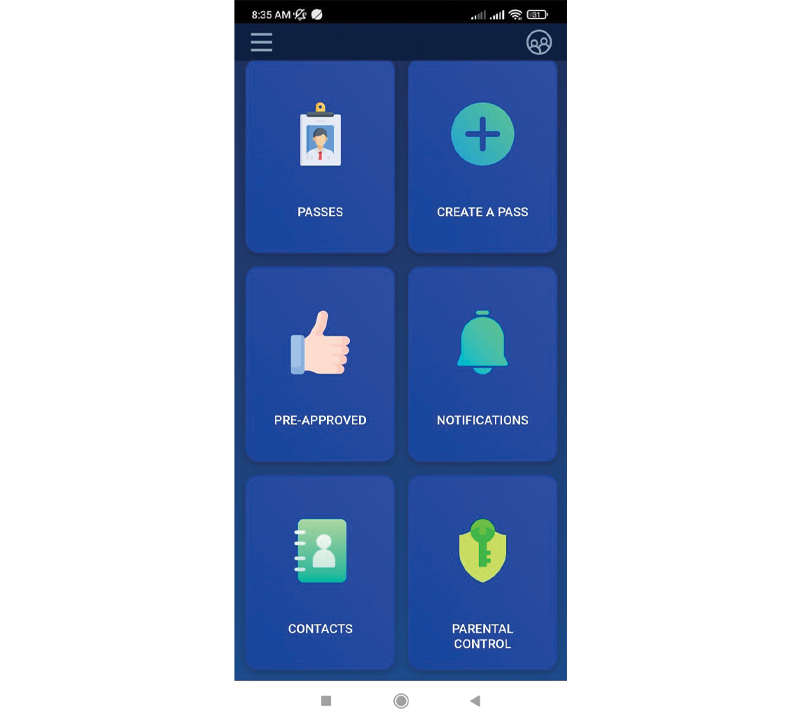
Dashboard
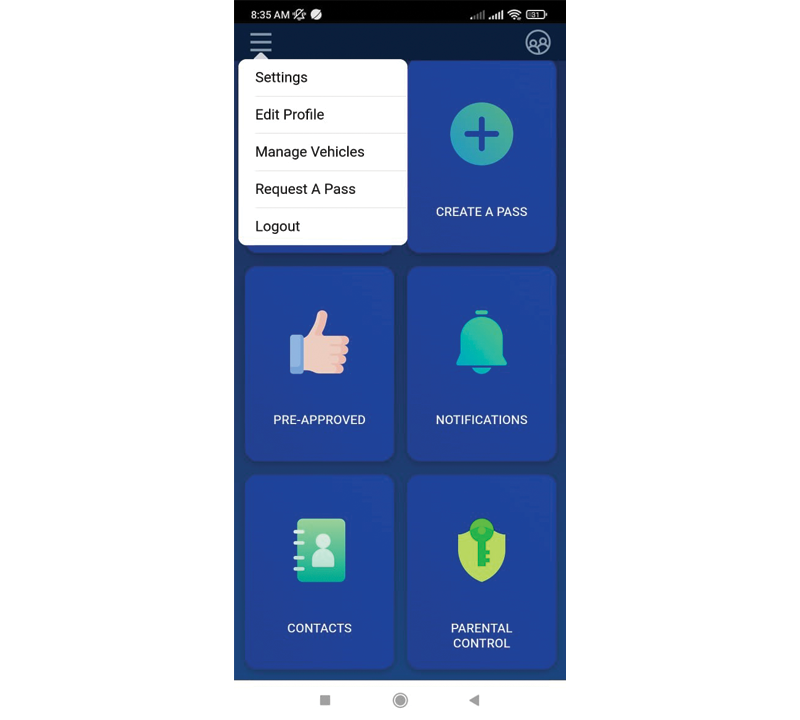
The Dashboard is your home screen in the ZUUL app. From here you can access all features including My Contacts, Pre-Approved, Create a Pass, My Passes, Notifications, and Parental Controls.
People & Lists
People & Lists
My Contacts
My Contacts
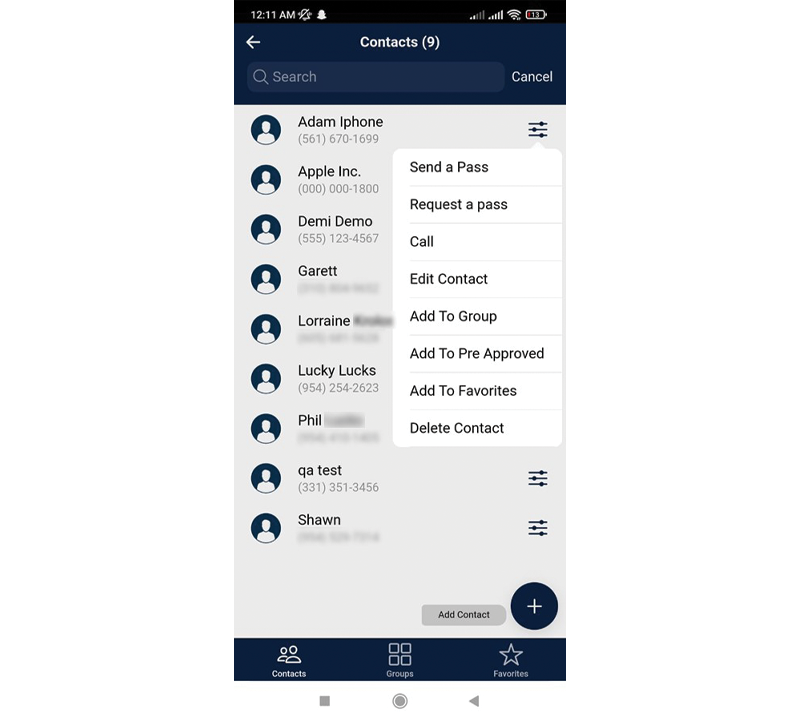
Press an individual contact’s Small Navigation Menu on the My Contacts screen for various options, including sending a pass, calling a contact, editing a contact, adding a contact to a Group, adding a contact to Favorites, or deleting a contact.
Create Contacts, Groups, and Favorites
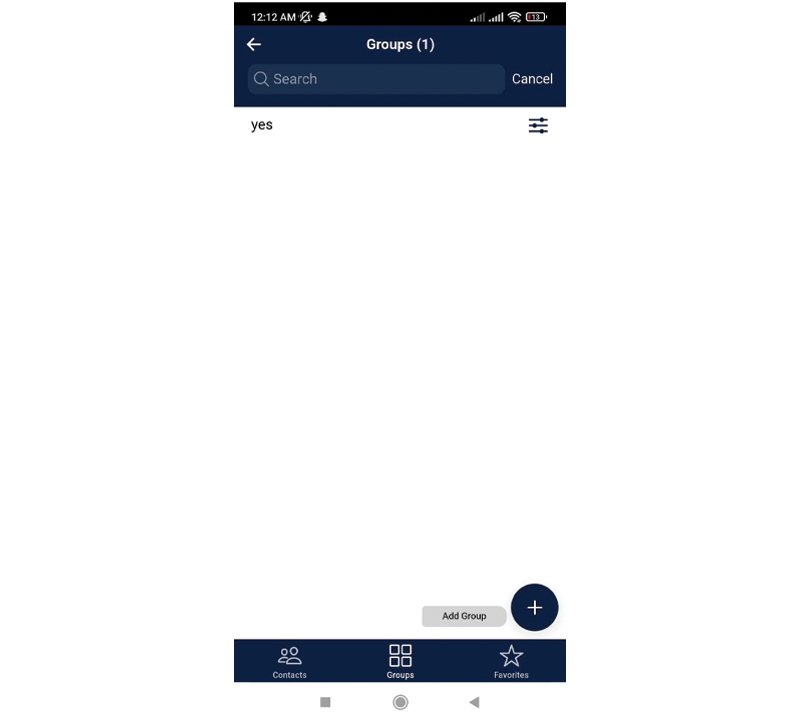
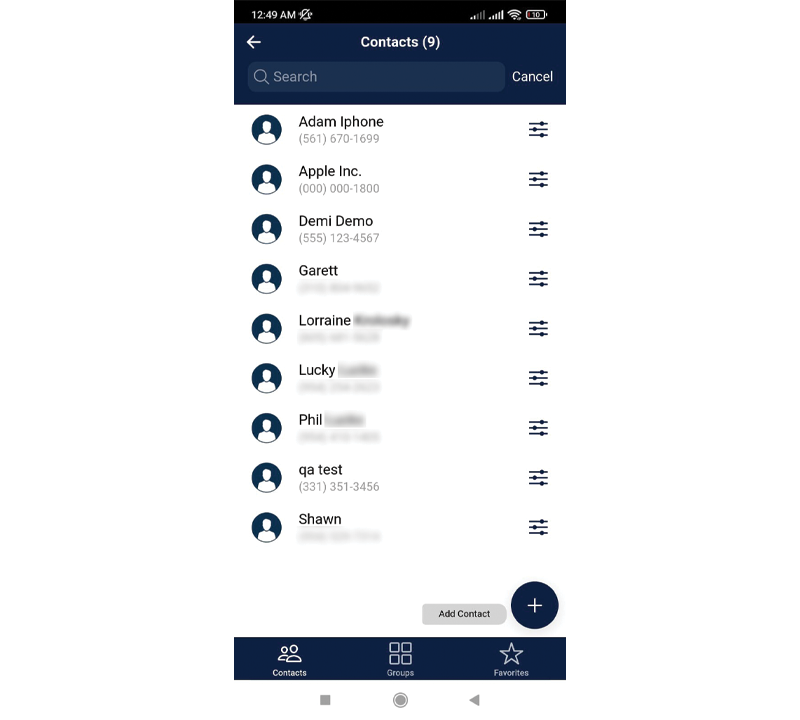
View a full list of your contacts, your contacts organized into groups, or contacts marked as favorites under My Contacts. To add groups, click the Add Group button at bottom-right corner.
Add Contacts
To add contacts in ZUUL, press the Add Contact button at bottom-right corner. Contacts can be added manually or they can be imported directly from your mobile device.
People & Lists
Pre-Approved Guests
Pre-Approved Guests
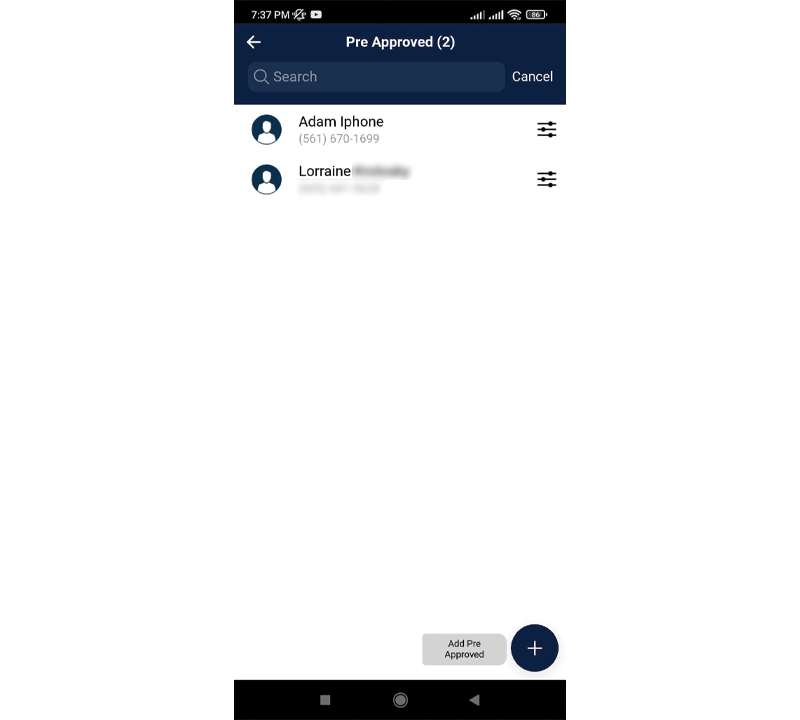
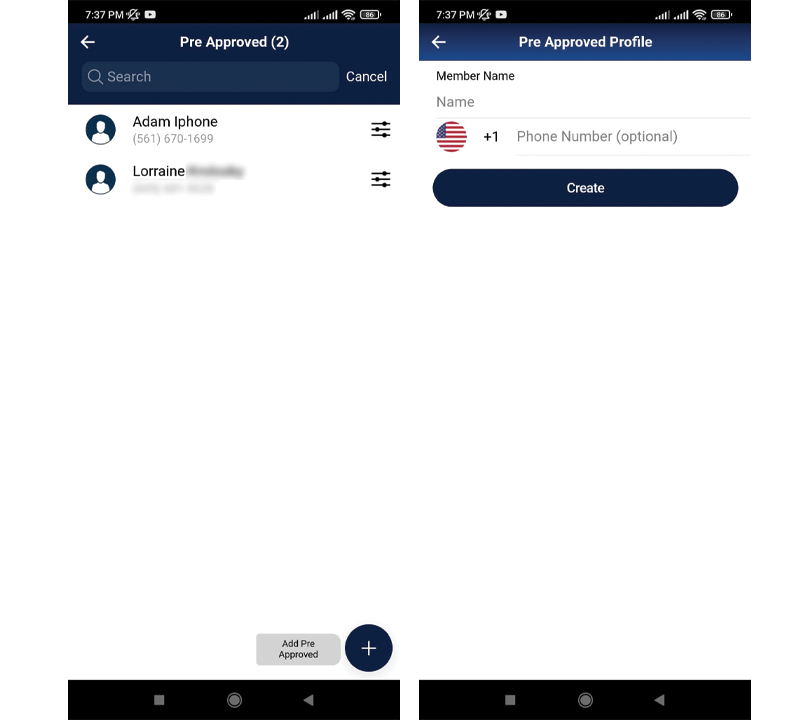
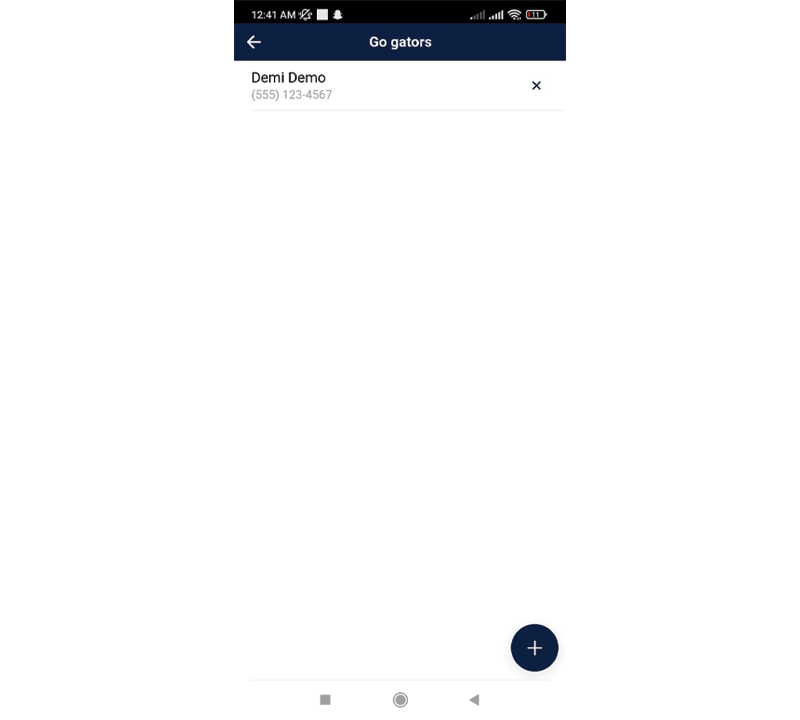
Once you press on the Pre-Approved tile on your dashboard, you will be brought to a list of anyone put on your pre-approved list.
Add Pre-Approved Guests
Press the + sign in the bottom right corner where it says Add Pre Approved. For family and friends enter both their name and cell phone number and press Create. For vendors and delivery, type the name in only and press Create.
Remove / Share
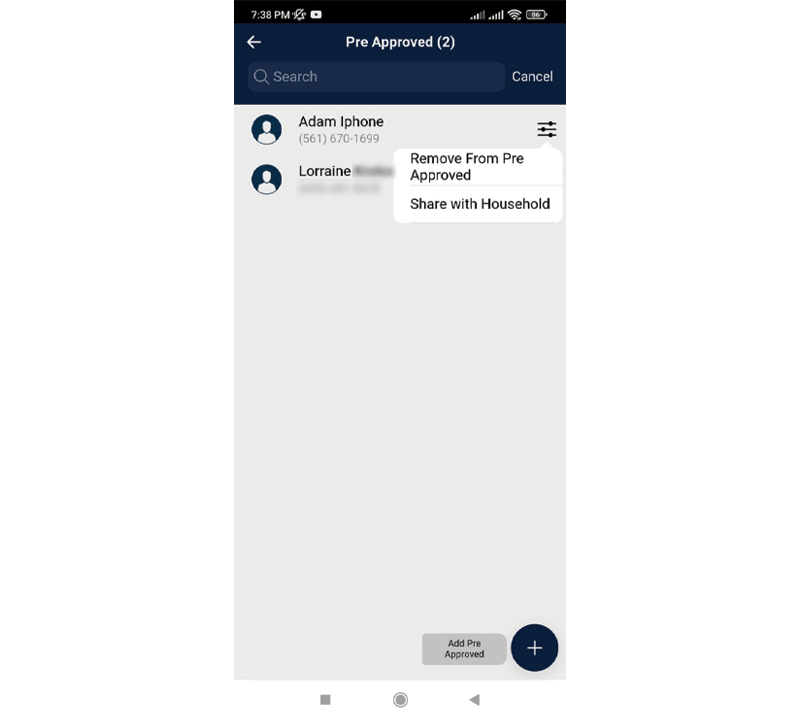
Press the menu tab, and you can elect to remove an entry or Share with Household (This allows your entry to show up on the pre-approved list of every member in your household).
Passes
Passes
Create a Pass
Create a Pass
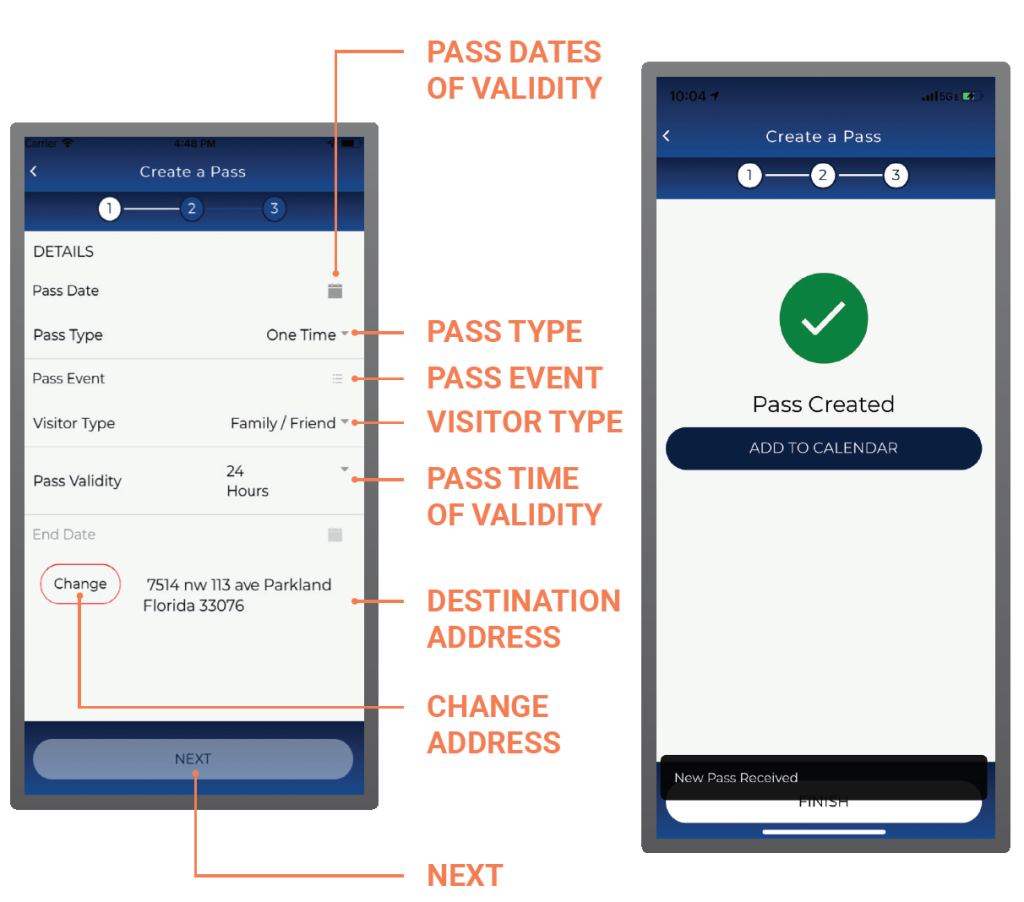
To create a pass, start by entering the date and time the pass will become valid in the Pass Date field. Then, fill out the Pass Type field. You can choose to send a one-time pass, a recurring pass, or a pass to yourself.
Proceed to choosing the reason for the visit in the Pass Event field and your relationship to the pass provider in the Visitor Type field. Choose the length of time the pass will be active under the Pass Validity field. Confirm the address of the final destination. The address will default to your home address, but you can edit it by pressing the Change button.
Passes
Pass Detail
Pass Detail
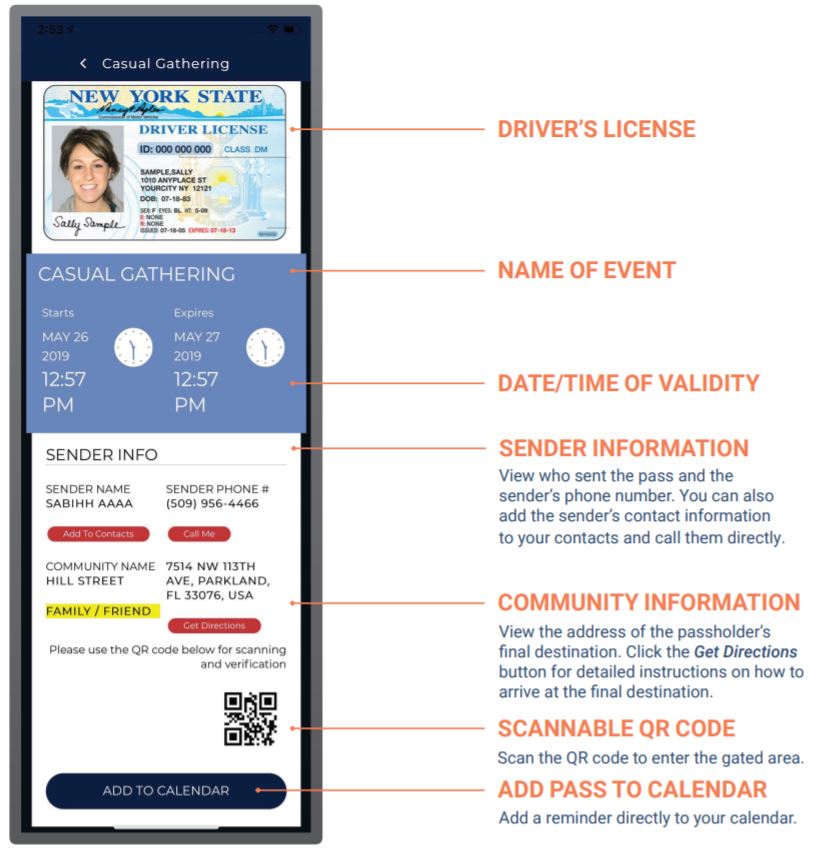
The pass details include all of the information you, your guests, and security officers need regarding access.
Passes
My Passes
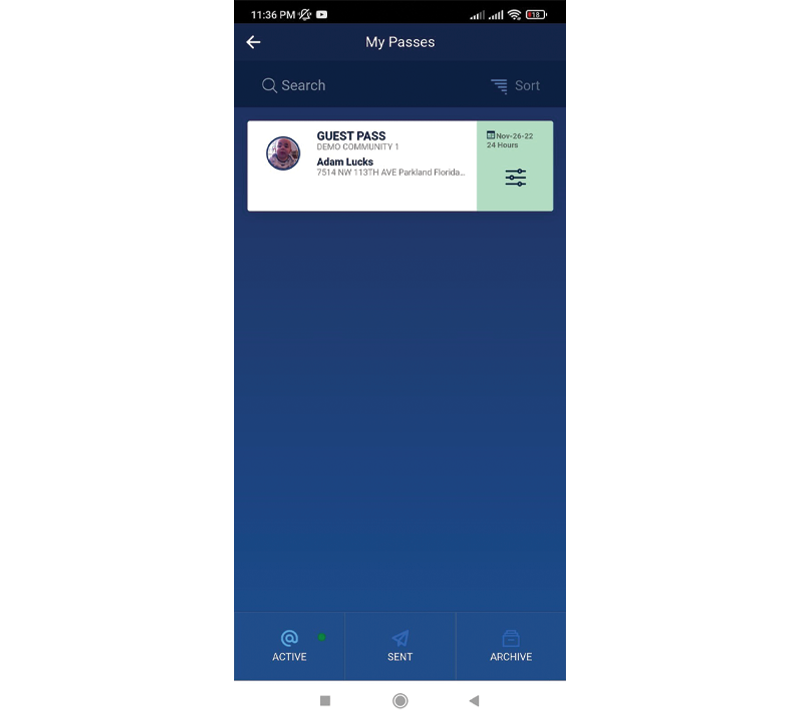
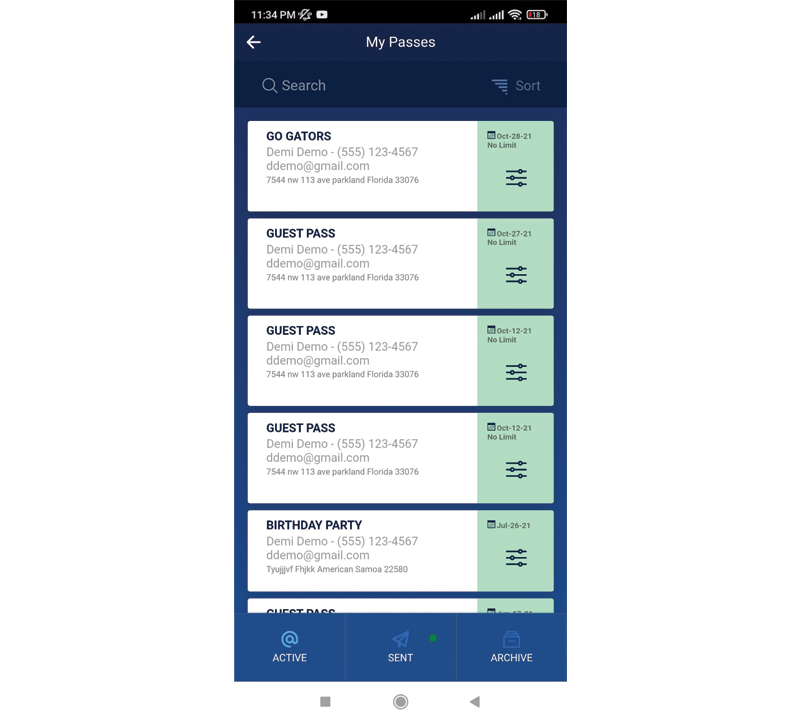
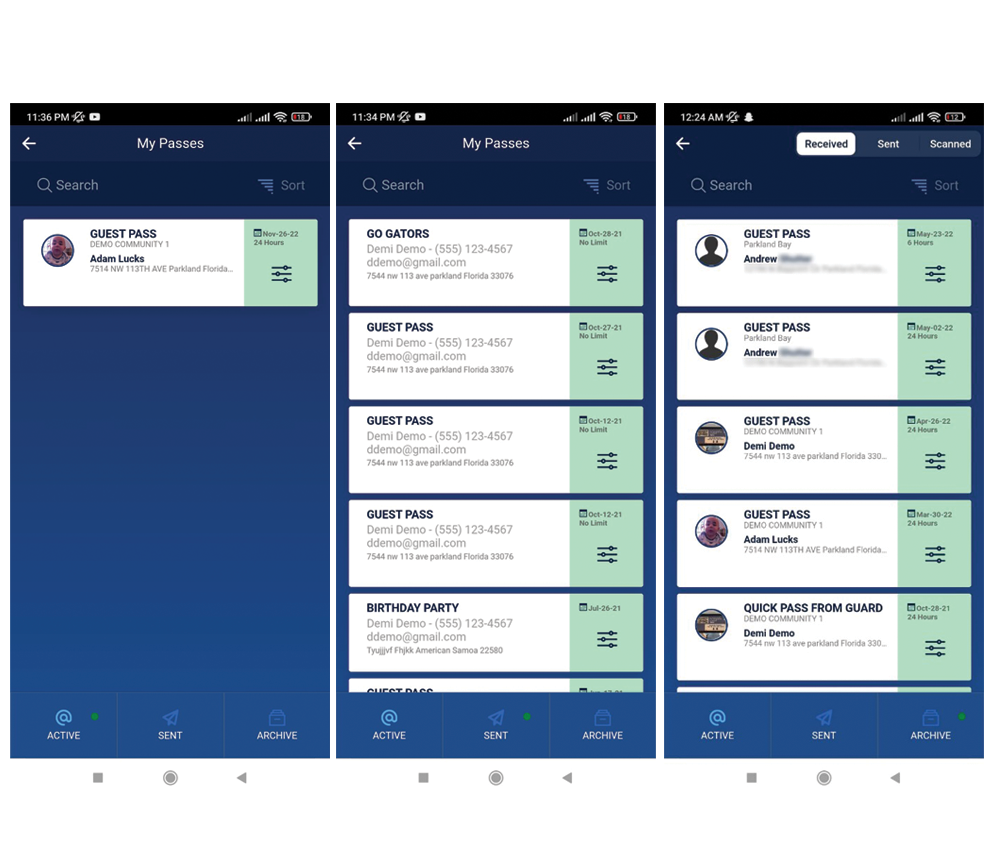
On the My Passes dashboard, click the Active tab to view active passes. You can sort your active passes by community, sender, event name, or date.
View Details / Get Directions
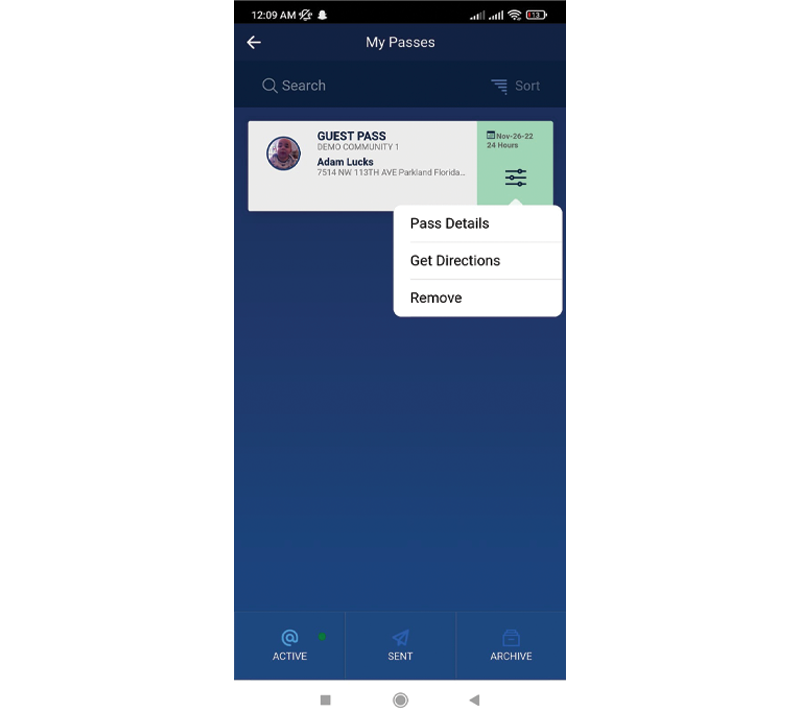
Click on an active pass to view its details or get directions to your final destination. If you don’t want your pass any longer, you can remove it from your list.
Passes
Sent Passes
Sent Passes
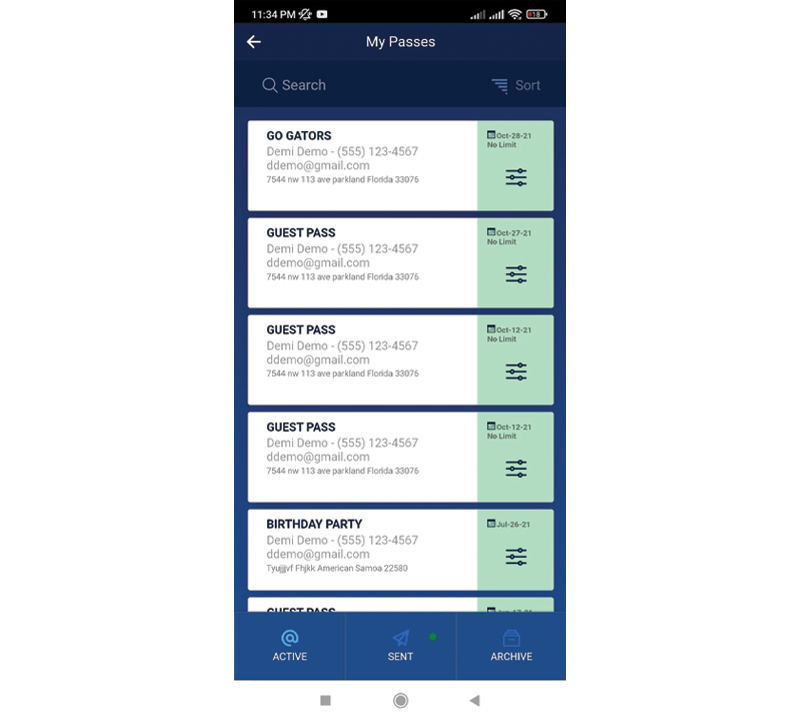
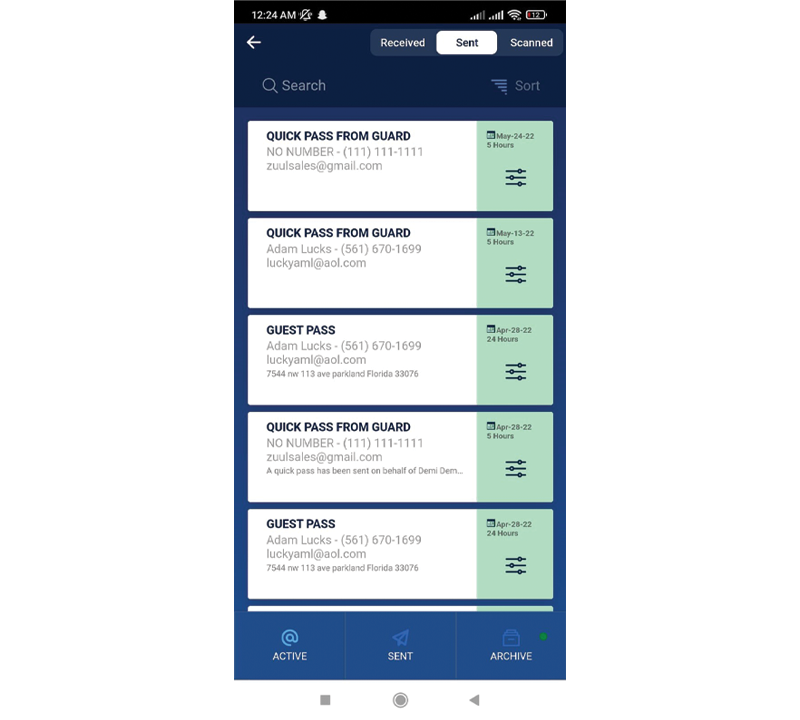
On the My Passes dashboard, click the Sent tab to view sent passes. You can sort your active sent passes by community, sender, event name, or date.
Retract Entire Pass
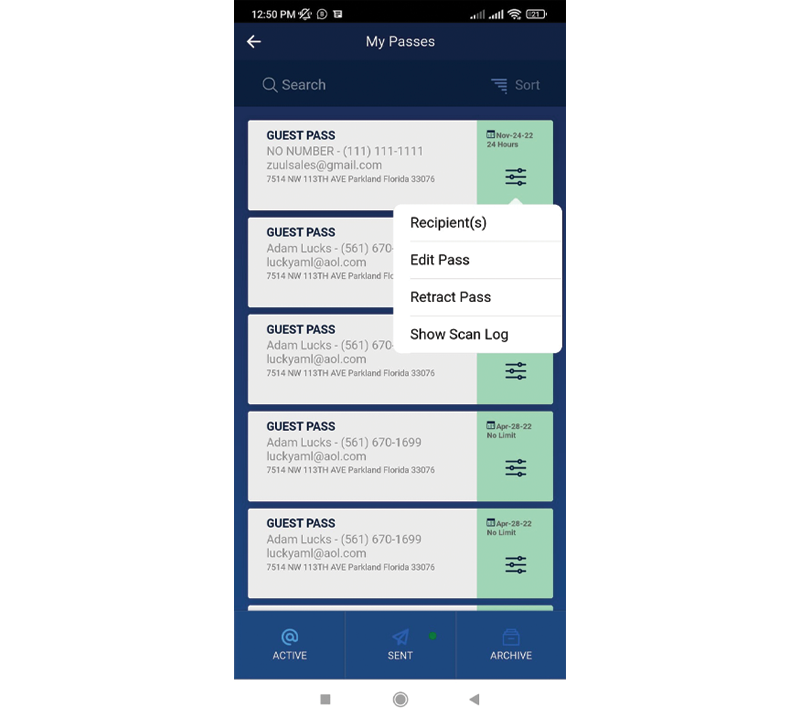
You can view some options for Sent Passes by clicking the options bar. Recipient(s), Edit Pass, Retract Pass, Show Scan Log.
Add/Delete Recipients to an Active Pass
To add a recipient to an active pass, click the Add Recipient button at the bottom-right corner. To delete a recipient of an active pass, click the X to the right of their name.
Passes
Archived Passes
Archived Passes
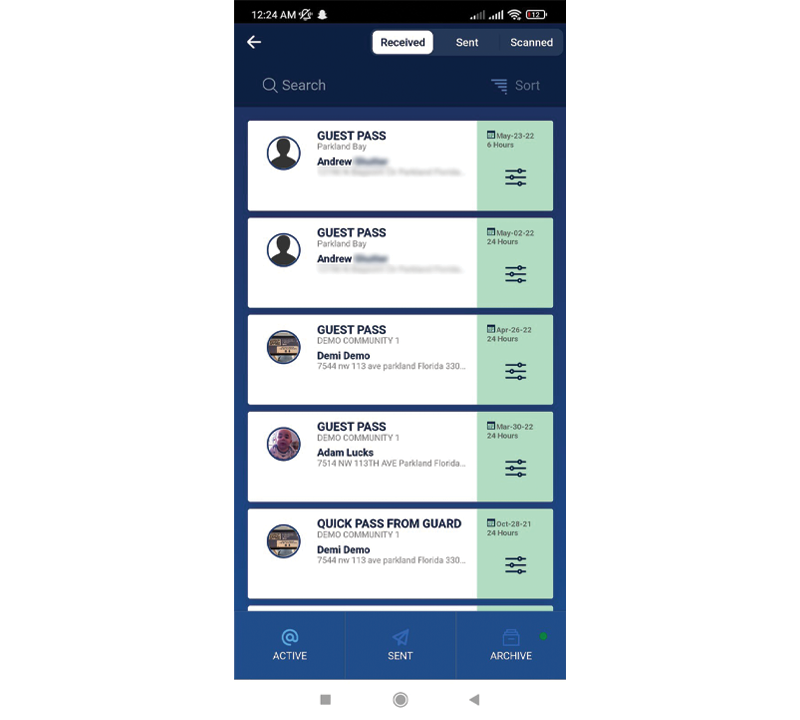
On the My Passes dashboard, click the Archived tab to view archived passes.
Received Passes
This screen will show your archived received passes. You can sort your archived received passes by community, sender, event name, or date.
Sent Passes
This screen will show your archived sent passes. You can sort your archived sent passes by community, sender, event name, or date.
Preferences & Help
Preferences & Help
Parental Controls
Parental Controls
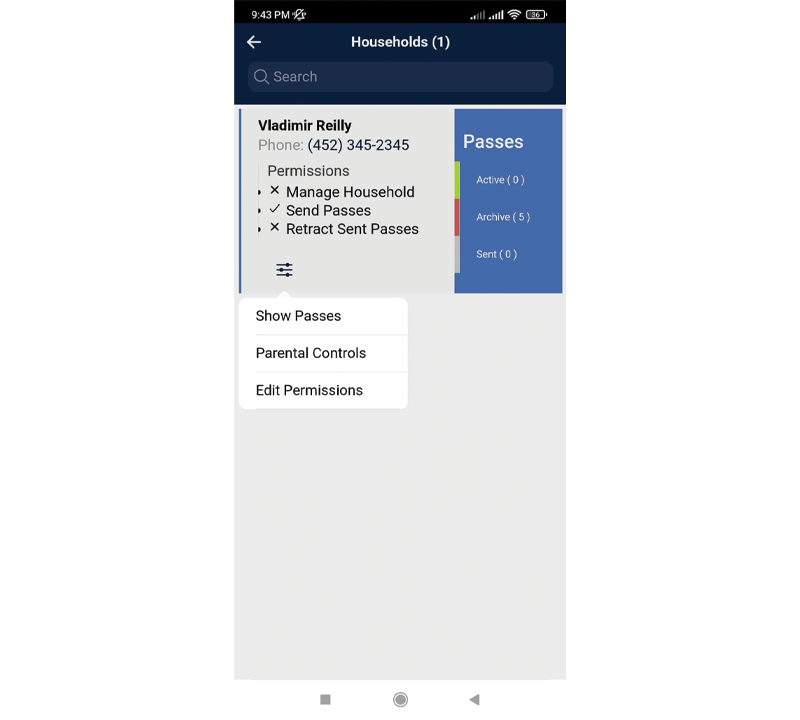
Pressing the Small Navigation Menu on the My Household page takes you to a screen where you can customize Show Passes, Parental Controls, and Edit Permissions.
Manage Member Passes
View the passes that have been issued by the members of My Household.
View/Retract Member Passes
View a My Household member’s active, archived, and sent passes. Press on the menu tab of a Household Member’s sent pass. Press Retract Pass to void the pass sent to all recipients.
Parental Controls
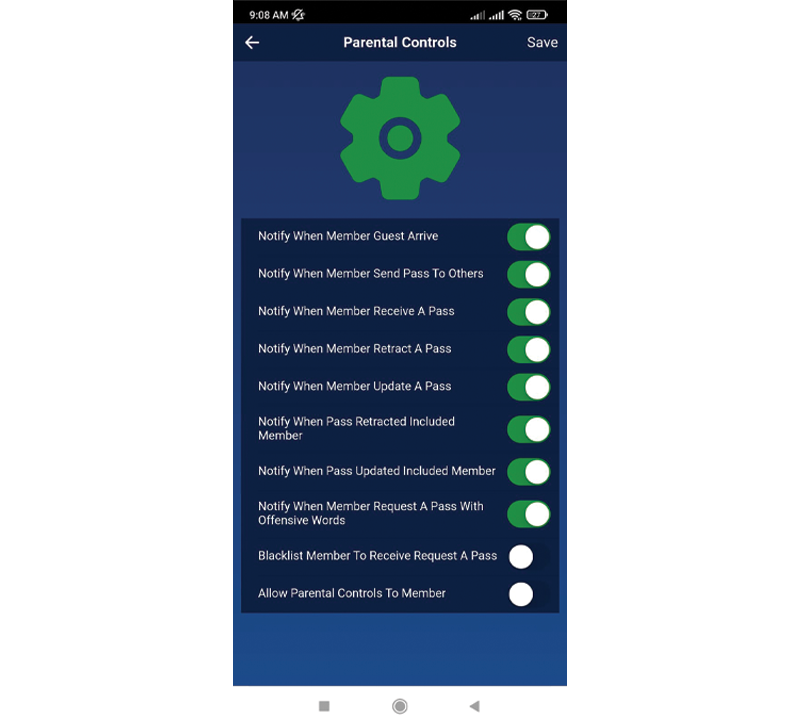
For those with permission, you can customize your notifications for each member of My Household. This feature allows a user to monitor the activity of a specific My Household member.
Preferences & Help
Notifications
Notifications
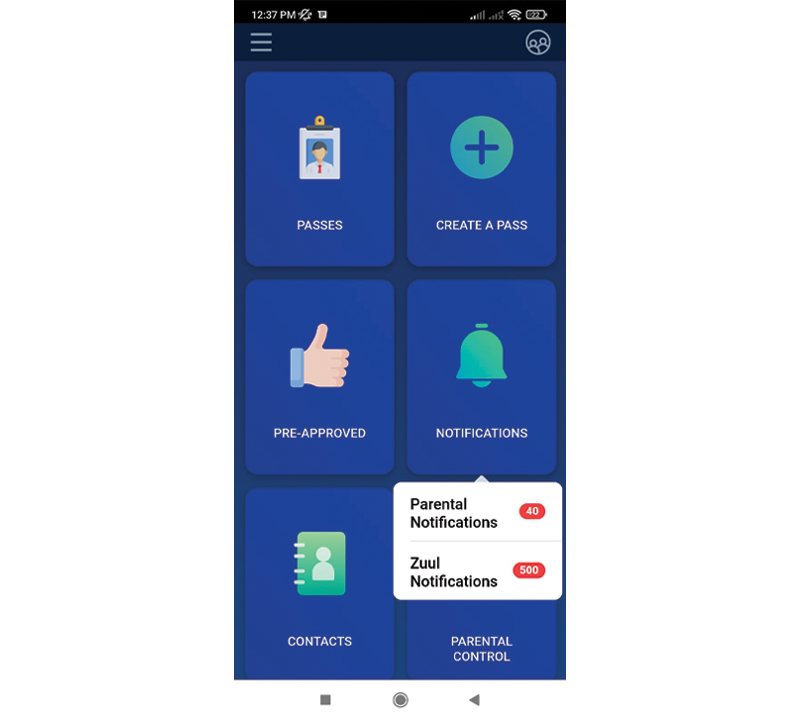
You can access your notifications by using the Notification box on your Dashboard. When tapping on the Notification Box you can see the unread notification and the quantity of the notifications.
View/Delete Pass Notification
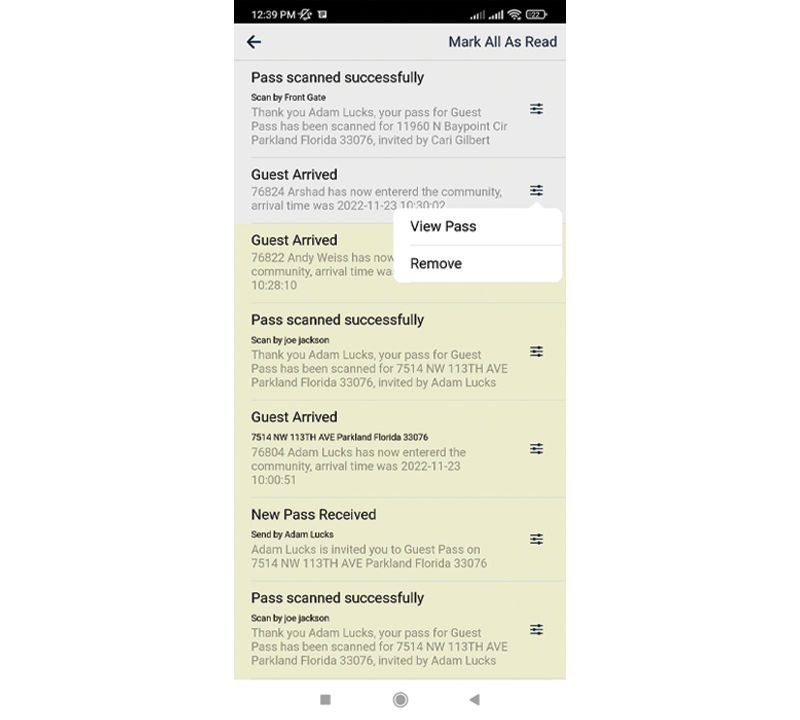
On the Notifications screen, you’ll be able to accept or deny any pass requests, view current passes, and view all other notifications. To delete a notification, press the menu tab and press Remove. View Pass only work when you have received a new pass.
Preferences & Help
Navigation Menu
Navigation Menu
You can access your notifications by using the Notification box on your Dashboard. When tapping on the Notification Box you can see the unread notification and the quantity of the notifications.
Preferences & Help
Settings
Settings
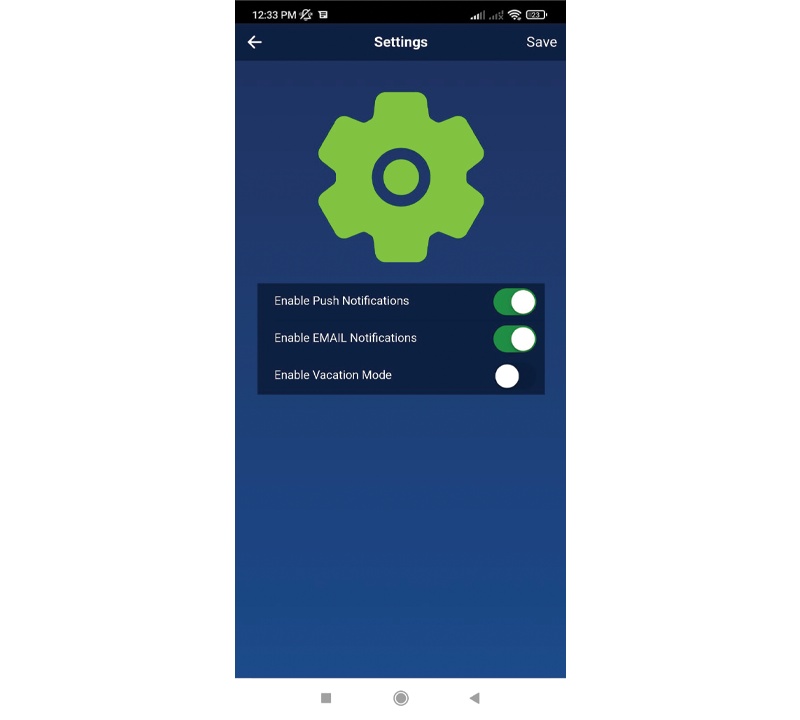
Customize your push and email notifications, and turn on vacation mode using the Settings menu.
Preferences & Help
Forgot Password
Forgot Password
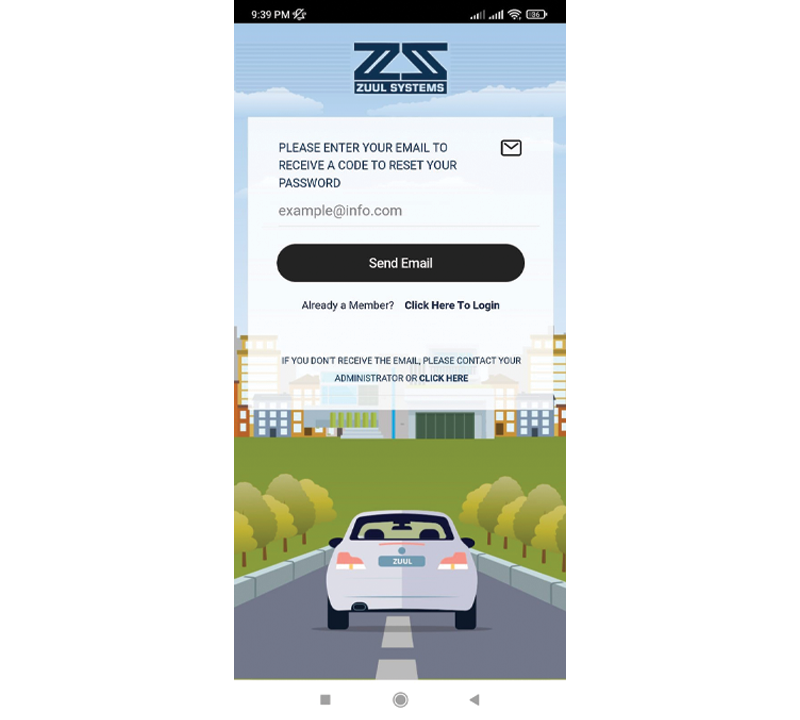
There’s no need to worry if you lose or forget your ZUUL password. All you need to do is enter your email in the designated field and press send. You will receive an email shortly after with an account recovery link and instructions to follow. The password recovery process only takes a few seconds!

What are you trying to do?
Become a guest member
Sign up as a guest member
Request a pass
Request a pass from a resident
View pass details
Check your pass status and info
Notifications
View and manage your notifications
Settings
Customize your push and email notifications
Forgot password
Recover your account password
On this page
Account Setup
Passes
Preferences & Help
Account Setup
Account Setup
Login
Login
Logging in is simple, too. Enter your phone number and password. Then, press the Sign In button.
Account Setup
Become a Guest Member
Becoming a guest member of ZUUL Systems is easy. Provide your full name, phone number, and password to sign up.
Next up:
Account Setup
Create Your Profile
Create Your Profile
Your profile can be created in only three easy steps.
General Information
First, fill out your general information.
Contact Information
Next, fill out your address.
Upload License
Press the Upload License tab and choose how you want to upload your image, by camera or gallery. Select your image and press the Finish button.
Next up:
Account Setup
Dashboard
Dashboard
The Dashboard is your home screen in the ZUUL app. From here you can access all features including My Contacts, Pre-Approved, Create a Pass, My Passes, Notifications, and Parental Controls.
Passes
Passes
Pass Detail
Pass Detail
The pass details include all of the information you, your guests, and security officers need regarding access.
Passes
Request a Pass
Request a Pass
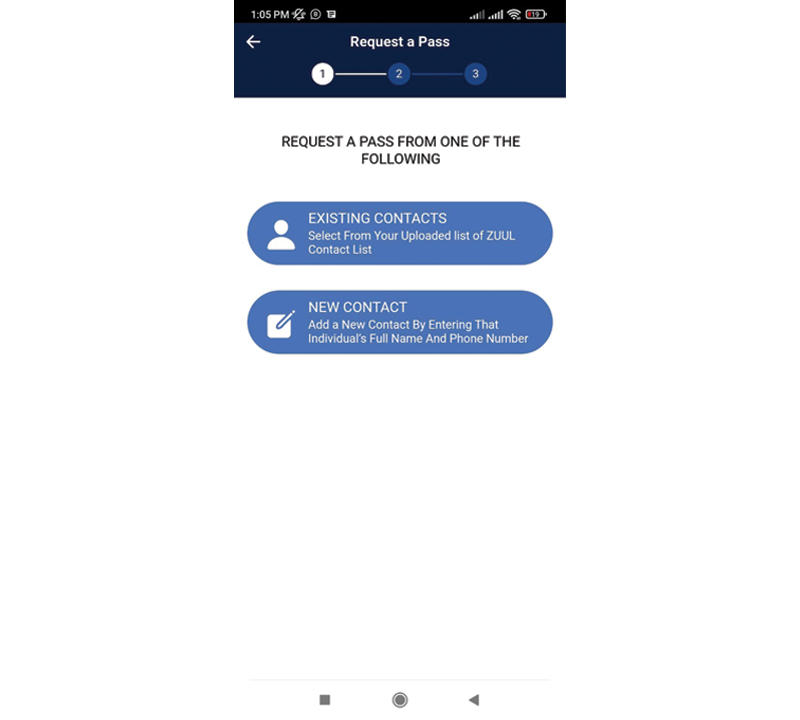
On the Request a Pass screen, you can request a pass from a resident who is an existing contact or new contact.
Existing Contact
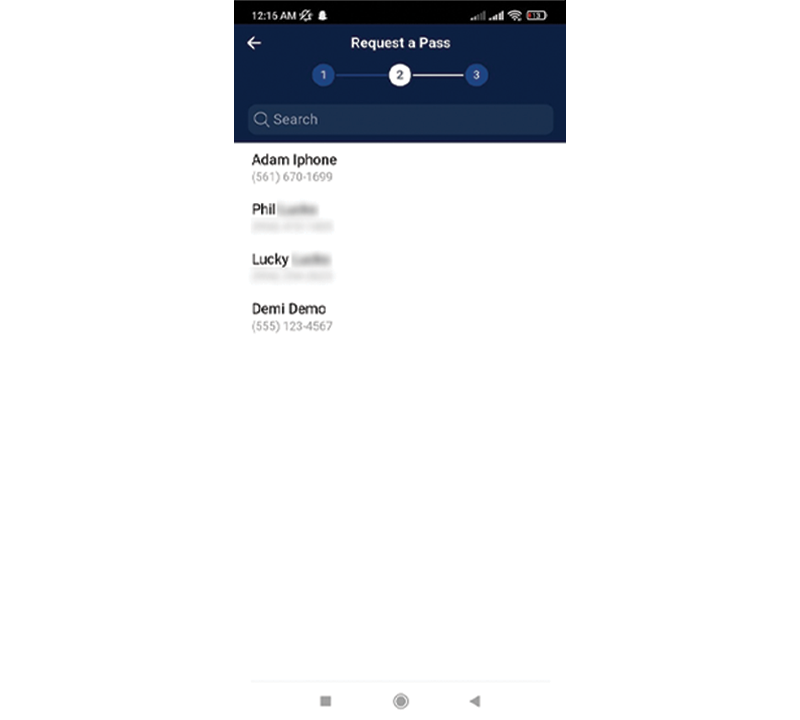
If the contact you are requesting a pass from already exists, press the circle next to that contact’s name. Then, press the Next button at the bottom of your screen.
Reason for Visit
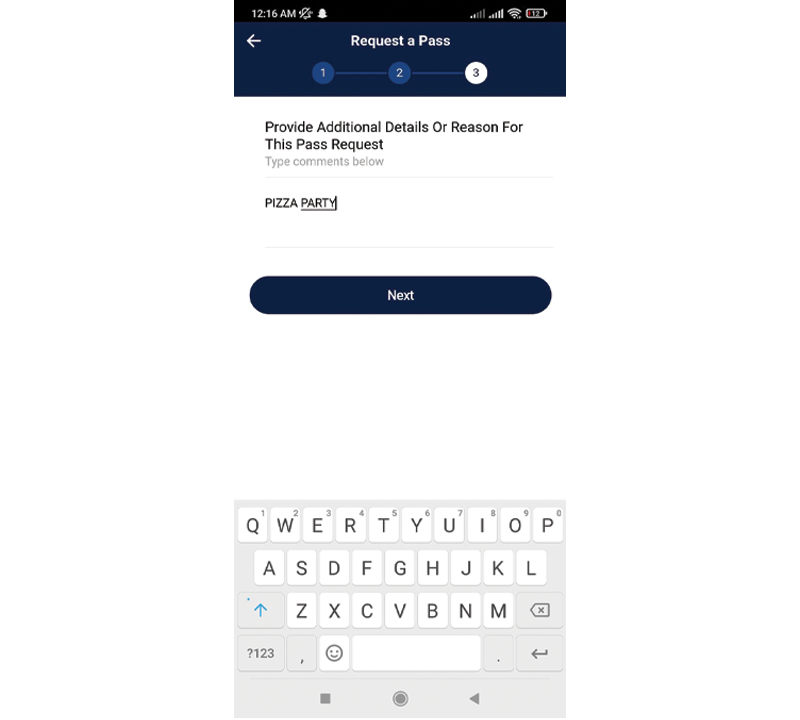
In the Comments field, enter the reason for your visit. For example, if you’re delivering pizza, you might enter “Pizza Party.” Then, press the Next button at the bottom of your screen.
Preferences & Help
Preferences & Help
Notifications
Notifications
You can access your notifications by using the Notification box on your Dashboard. When tapping on the Notification Box you can see the unread notification and the quantity of the notifications.
View/Delete Pass Notification
On the Notifications screen, you’ll be able to accept or deny any pass requests, view current passes, and view all other notifications. To delete a notification, press the menu tab and press Remove. View Pass only work when you have received a new pass.
Preferences & Help
Navigation Menu
Navigation Menu
You can access your notifications by using the Notification box on your Dashboard. When tapping on the Notification Box you can see the unread notification and the quantity of the notifications.
Preferences & Help
Settings
Settings
Customize your push and email notifications, and turn on vacation mode using the Settings menu.
Preferences & Help
Forgot Password
Forgot Password
There’s no need to worry if you lose or forget your ZUUL password. All you need to do is enter your email in the designated field and press send. You will receive an email shortly after with an account recovery link and instructions to follow. The password recovery process only takes a few seconds!
Still stuck?
We’ll help you get it sorted. Our support team is available to assist you.
Include screenshots and your community name for faster assistance.