Quick Start Guide
Browse all topics below or use the search above.
Guide Topics
Getting Started
Set Up Your Profile
Import Contacts
Send a One-Time Pass
Create a Recurring Pass
Pre-Approved Guest List
ZUUL Key
Adjusting Text Size
Fix Limited Access
What are you trying to do?
Getting Started
Download the app and sign in
Set Up Your Profile
Complete your profile information
Import Contacts
Import contacts from your phone
Send a One-Time Pass
Send a one-time use pass via text
Create a Recurring Pass
Send yourself a recurring no-limit pass
Pre-Approved Guest List
Add vendors, family, and friends
ZUUL Key
Use the key feature on your dashboard
Bulk Delete Contacts
Remove many contacts at once
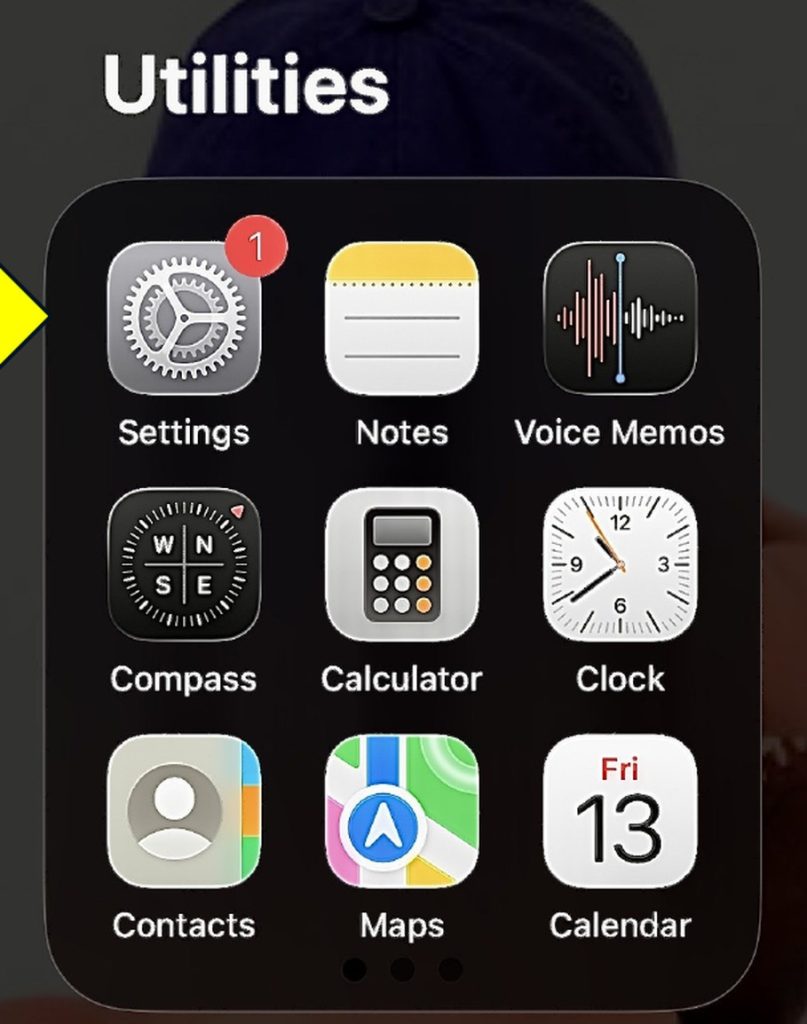
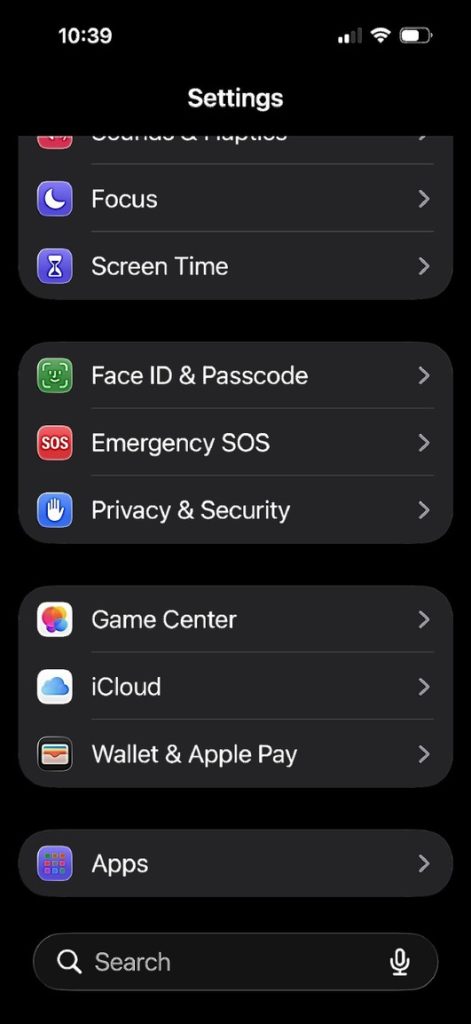
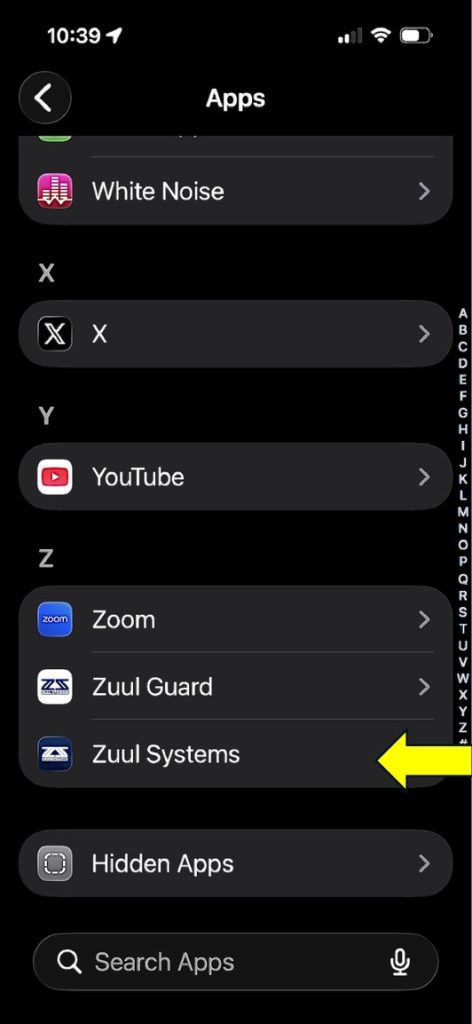
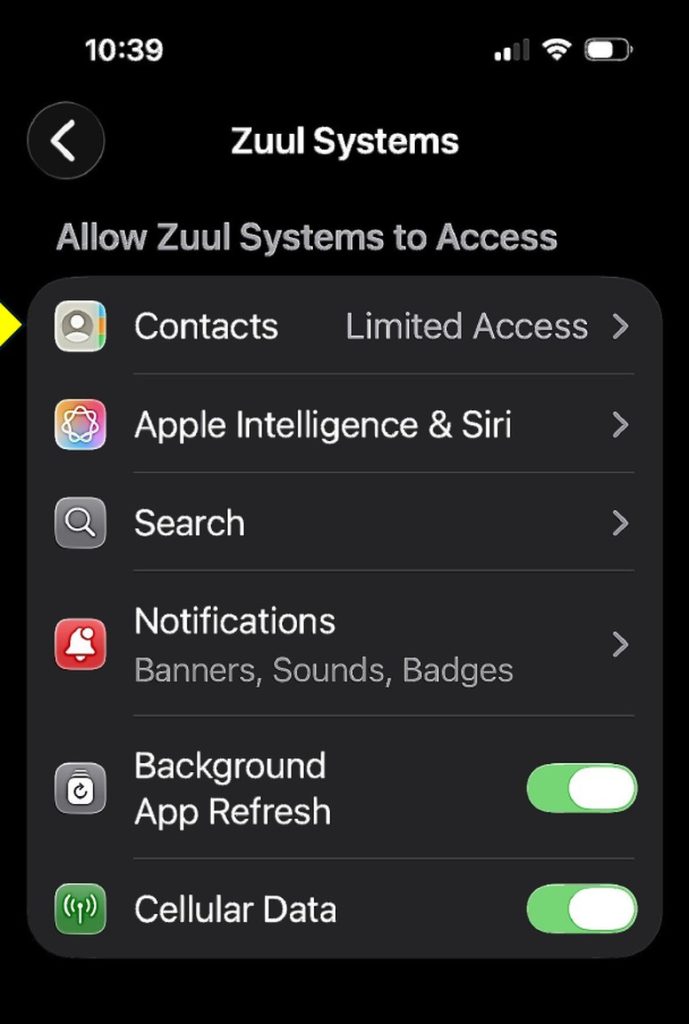
Fix Limited Access
Fix limited access to contacts on iOS
On this page
Getting Started with ZUUL
Set Up Your Profile
Import Contacts from Cell Phone
Sending a One-Time Use Pass via Text
Create Your Own Recurring Permanent Pass
Pre-Approved Guest List
ZUUL Key
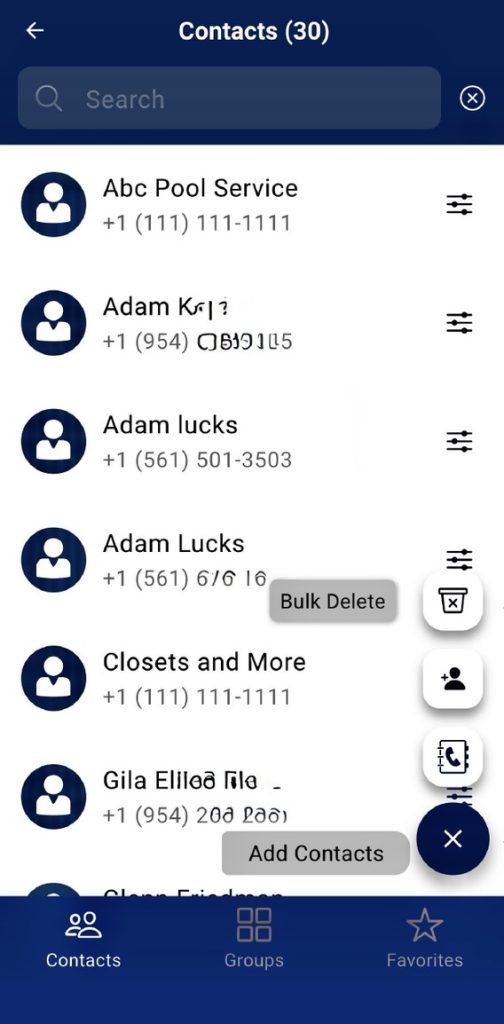
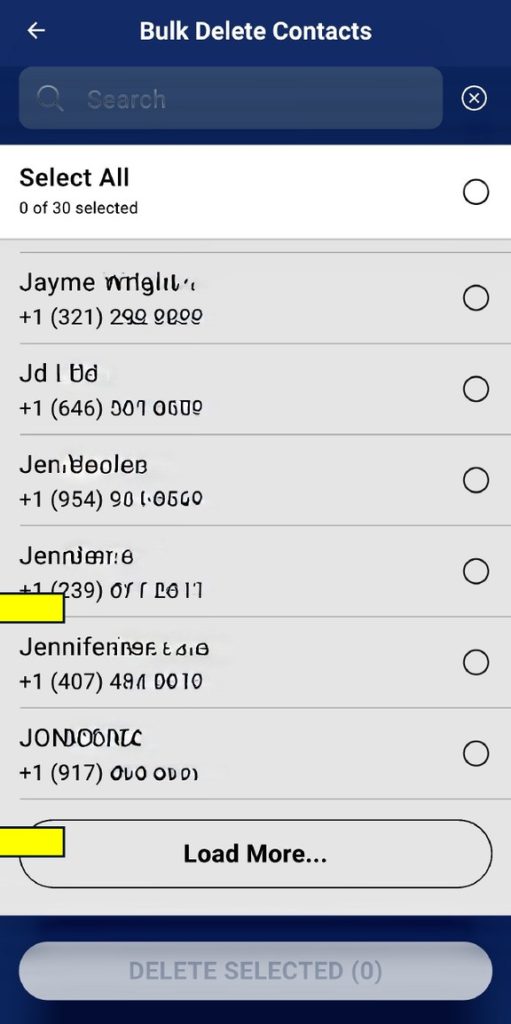
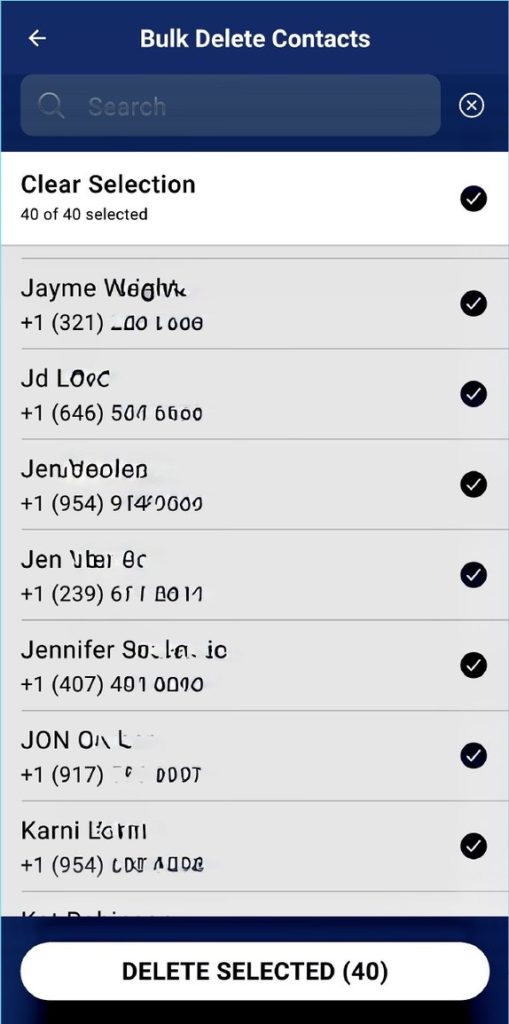
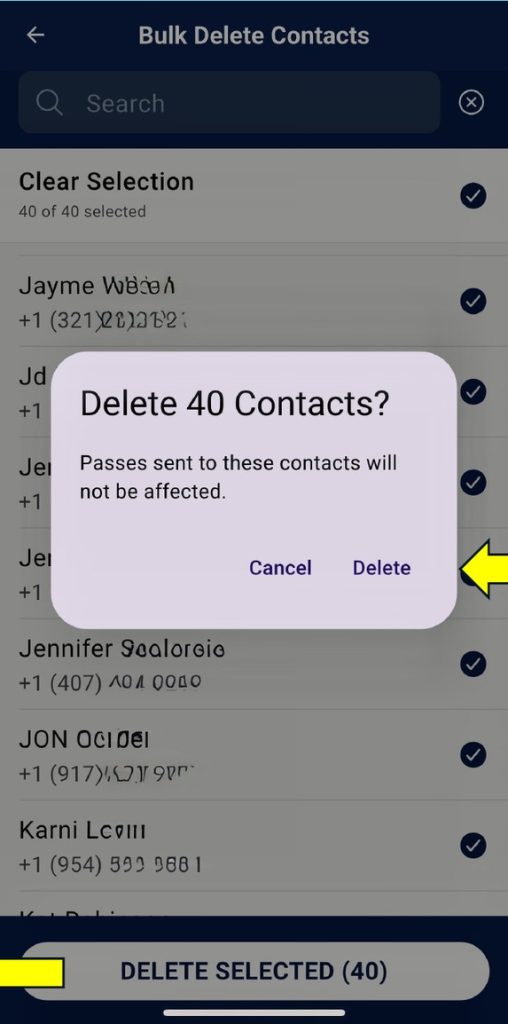
Bulk Delete Contacts
Fix Limited Access
Getting Started with ZUUL
Welcome Email, App Download & Sign In
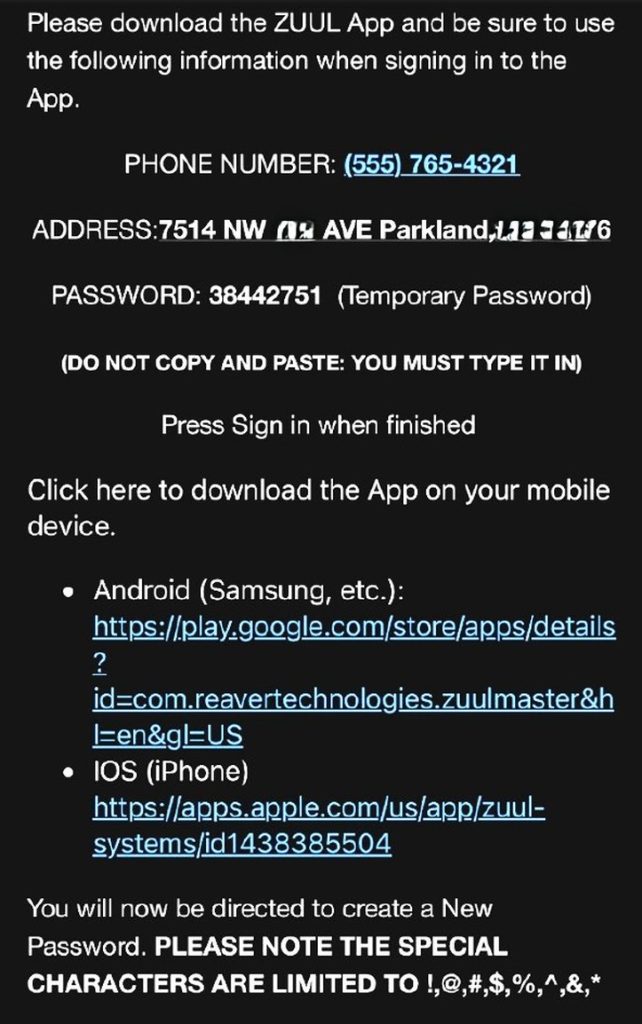
Look in your email for a Welcome email from support@zuulsystems.com. If not found in your inbox, it may have gone to your spam folder. Find your PHONE NUMBER and TEMPORARY PASSWORD, as they will be needed to create your account.
If the phone number is incorrect, STOP, and speak with your property manager.
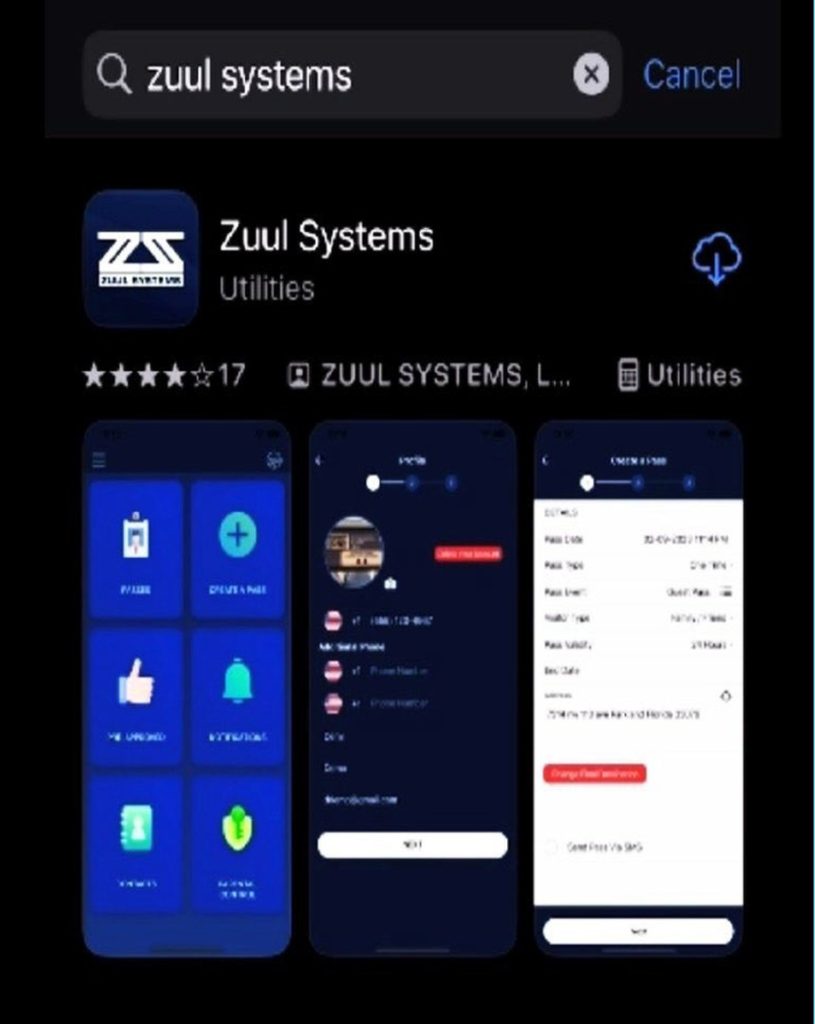
Download the ZUUL Systems app from either the App Store or Play Store. Please note, you want to download the ZUUL app that has a dark background and the ZUUL Systems logo in white.
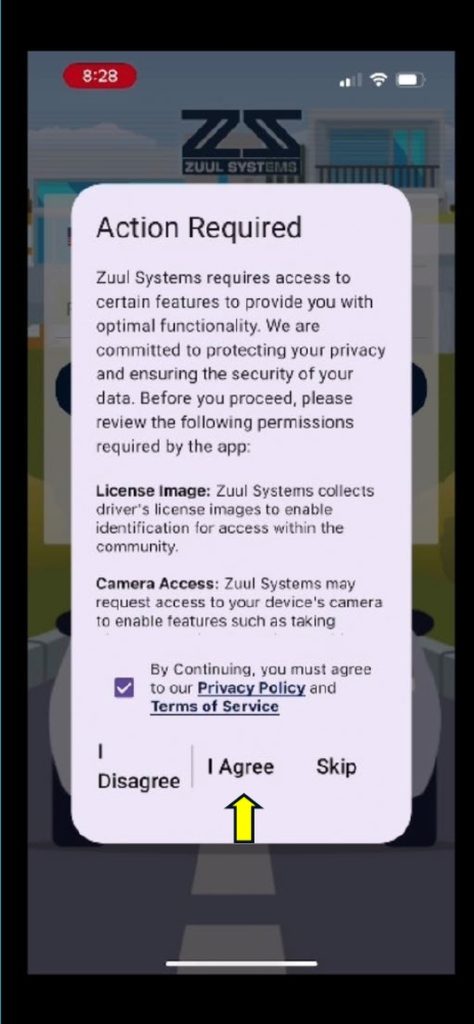
When prompted, Check the box agreeing to Privacy Policy and Terms of Service. Press “I Agree”.
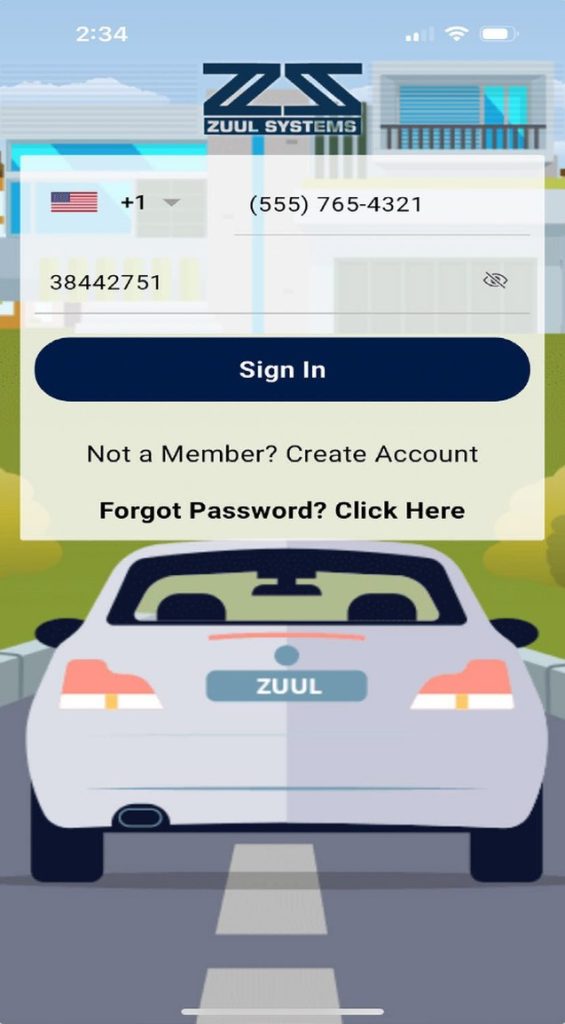
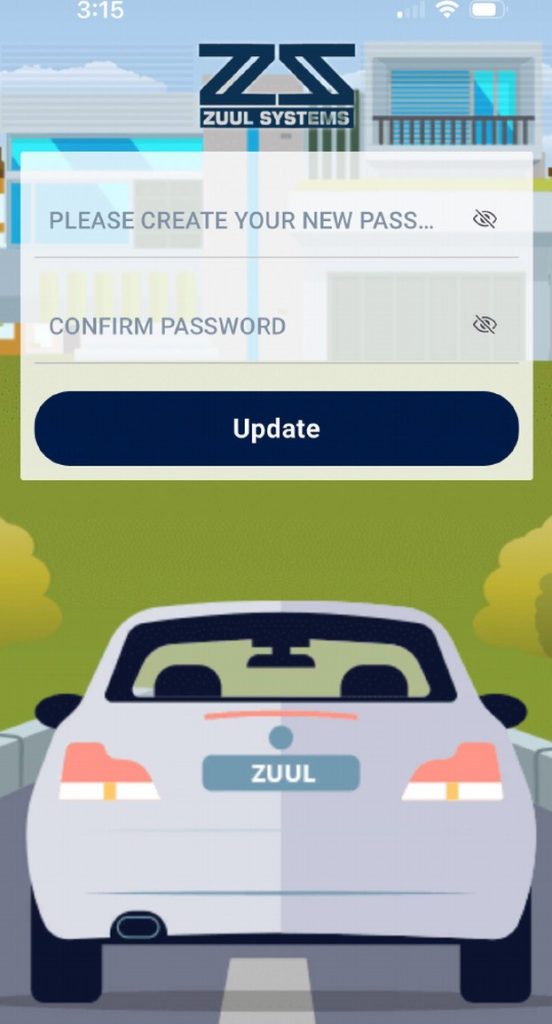
At the login screen, type in the Phone Number and Temporary Password found in your Welcome email. Press “Sign In”.
You will then be prompted to create and confirm your new password. Your new password must be at least 9 digits long, with at least 1 uppercase letter, 1 lower case letter, 1 number, and 1 special character (!,@,#,$,%,^,&,*). Press the eyes to the right to see what you typed to make sure they match. Press “Update”.
Special characters are limited to ! @ # $ % ^ & *
DO NOT COPY AND PASTE the temporary password — you must type it in.
Set Up Your Profile
Set Up Your Profile
Profile, Contact Info & Verification ID
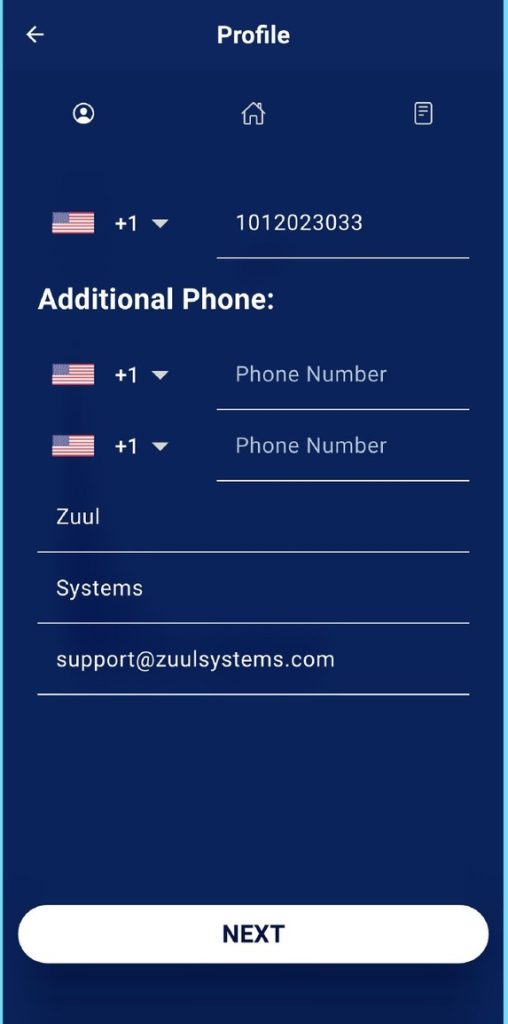
Check that the information on Page 1 of your Profile is accurate. You can also add up to 2 additional phone numbers for the officers to call you at. Press “NEXT”.
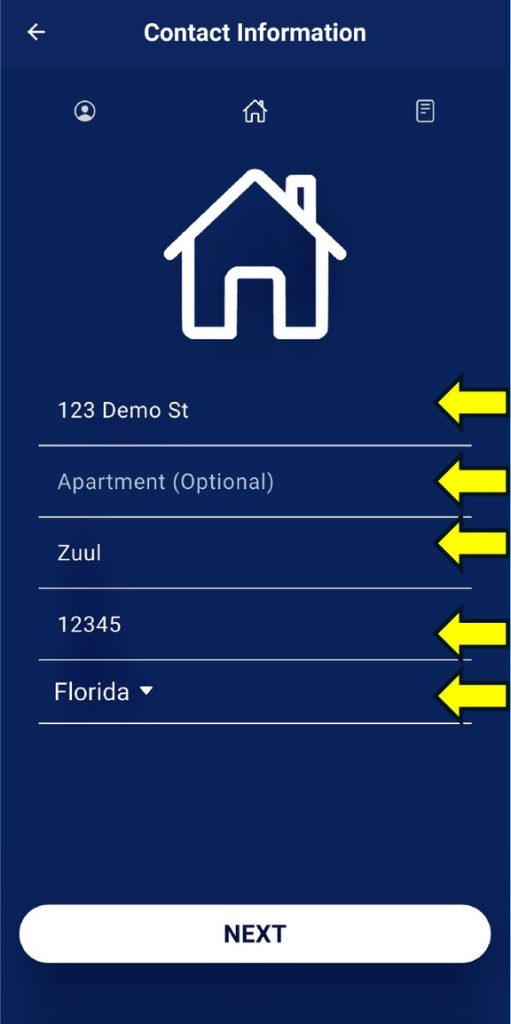
On the Contact Information Page, enter the address of the unit of the community ZUUL is being used in. Press “NEXT”.
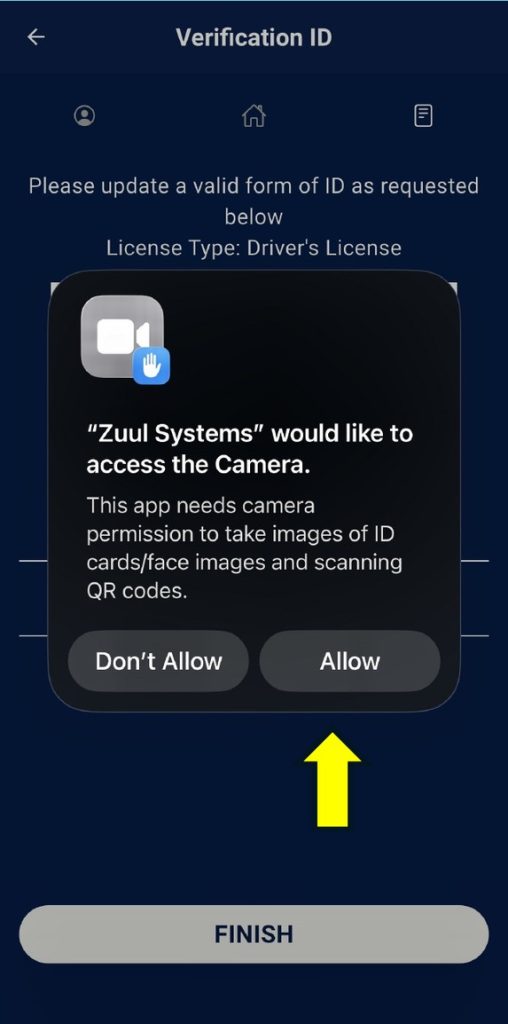
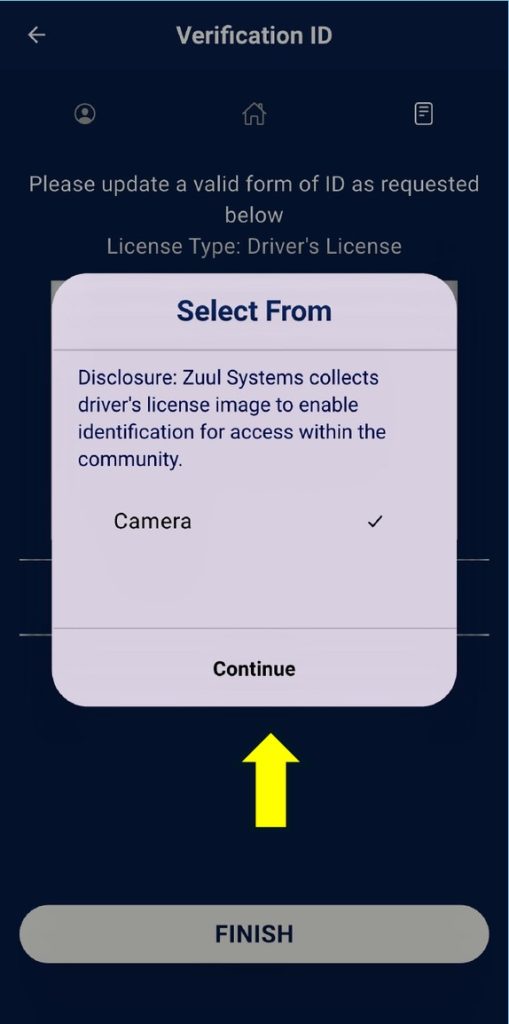
The last page of your profile requests that you upload an image of your driver’s license.
IF YOU ARE NOT COMFORTABLE UPLOADING YOUR LICENSE, TAKE A PICTURE OF ANYTHING AND PRESS "USE PHOTO".
Import Contacts from Cell Phone
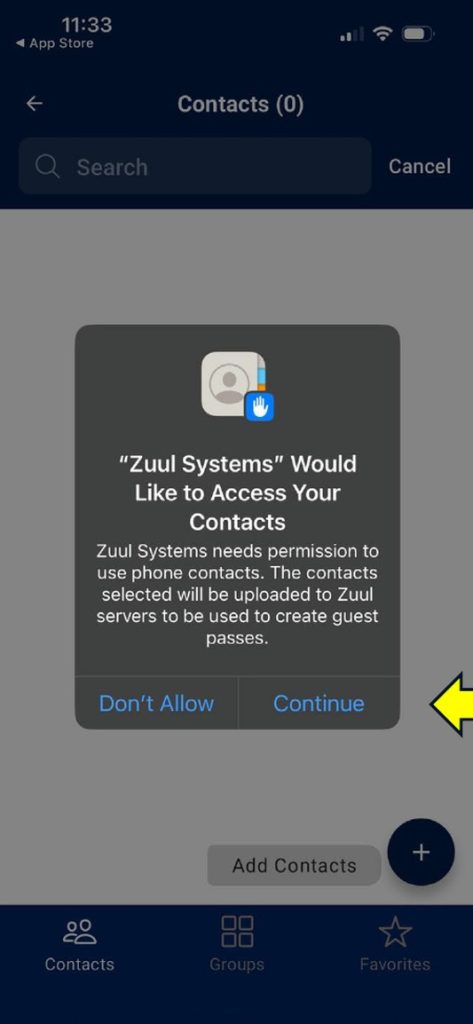
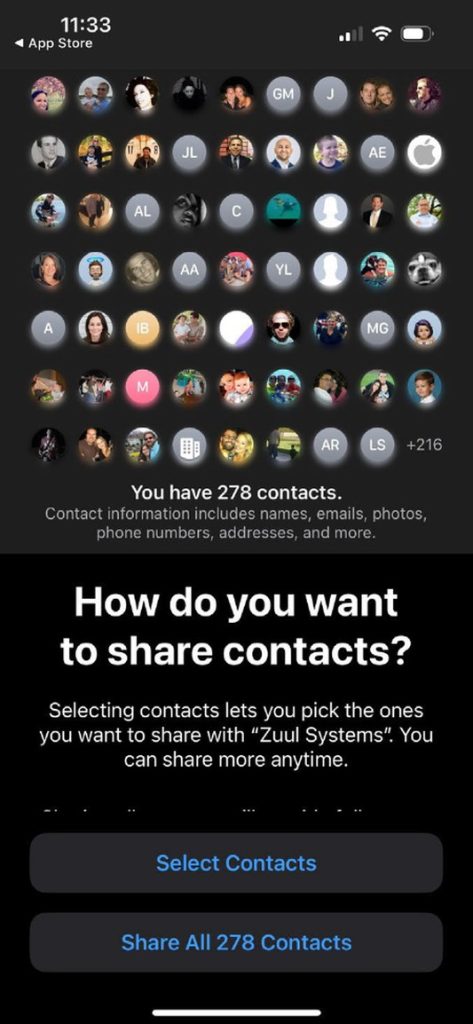
Granting Access & Sharing Contacts
Selecting and Importing Contacts
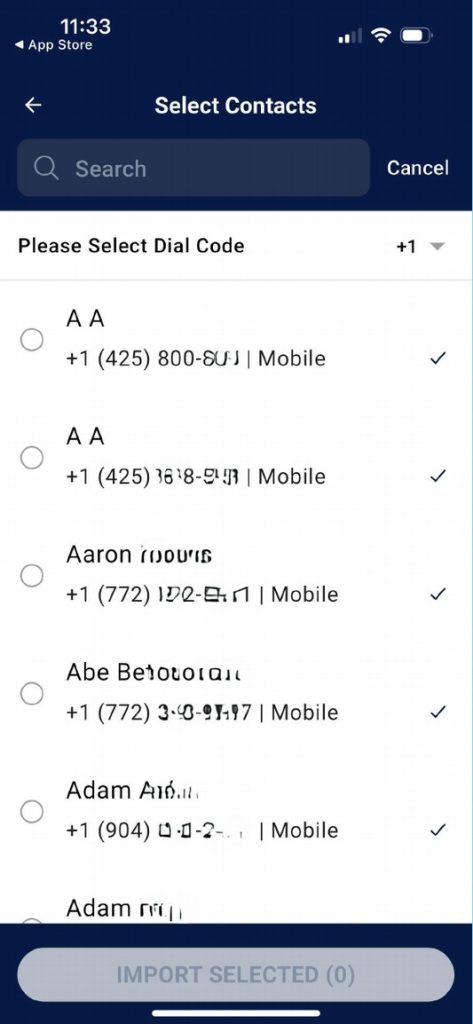
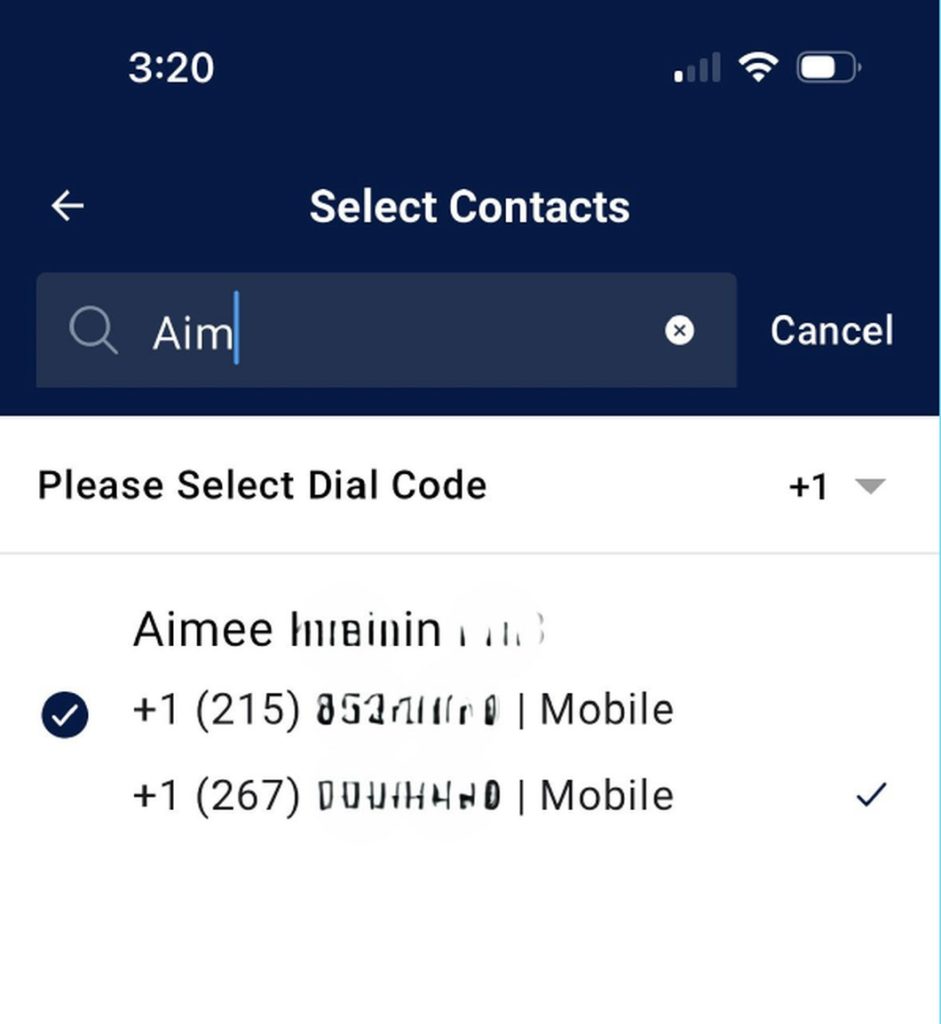
Your contacts will be displayed in order by First Name. A checkmark will be shown next to the phone number you would import, if you select that individual.
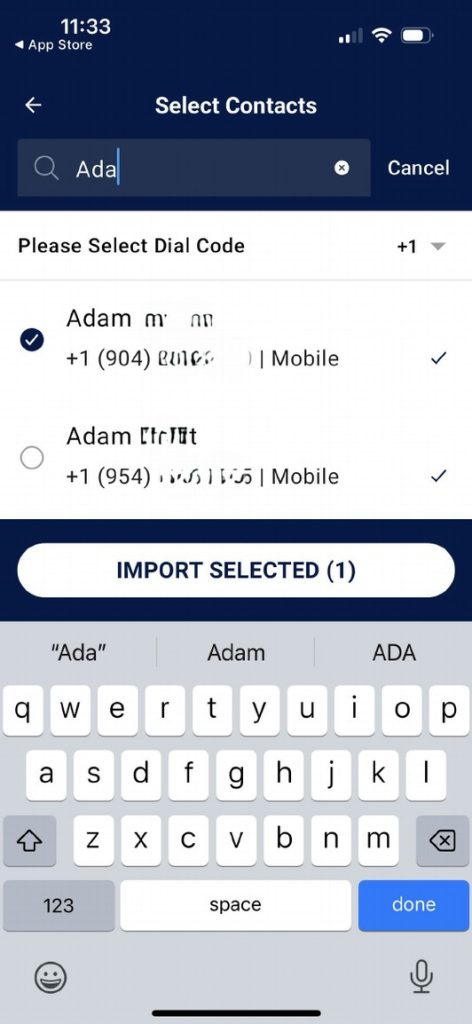
You can scroll through your list, or you can type a name in the search bar. Press on the “circle” to the left of any name to select it for import.
If the contact has multiple phone numbers, and you want to change which will be imported, Press to the right of the number you want, and the checkmark will move. When you have completed making your selections, Press the “IMPORT SELECTED” button.
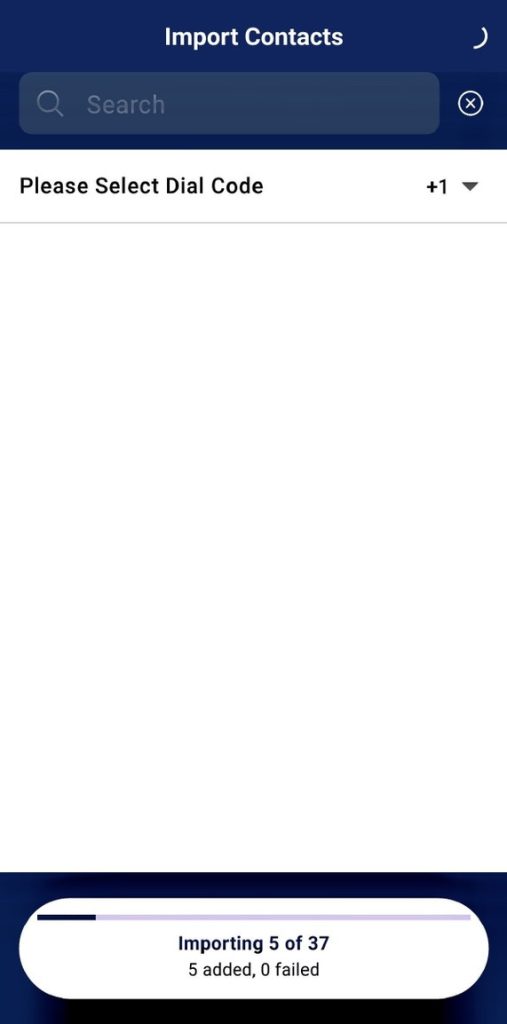
If you select many contacts at once to import, it may take up to one second per entry. Please be patient.
A confirmation of import will appear at the bottom.
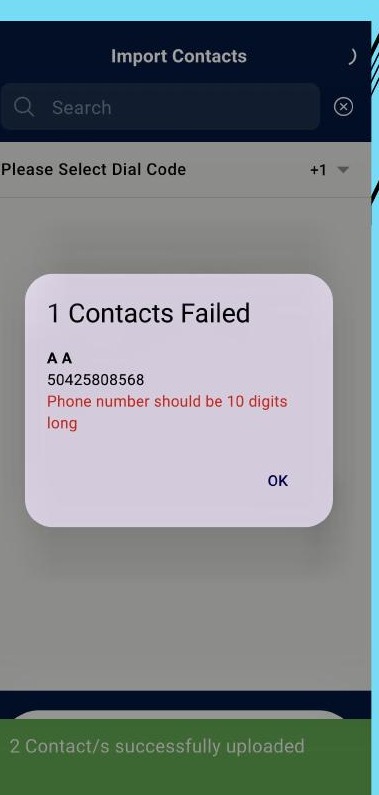
If any contacts failed to import, you will see a list of which contacts didn't import and why.
Sending a One-Time Use Pass via Text
Send a Pass by Text Message
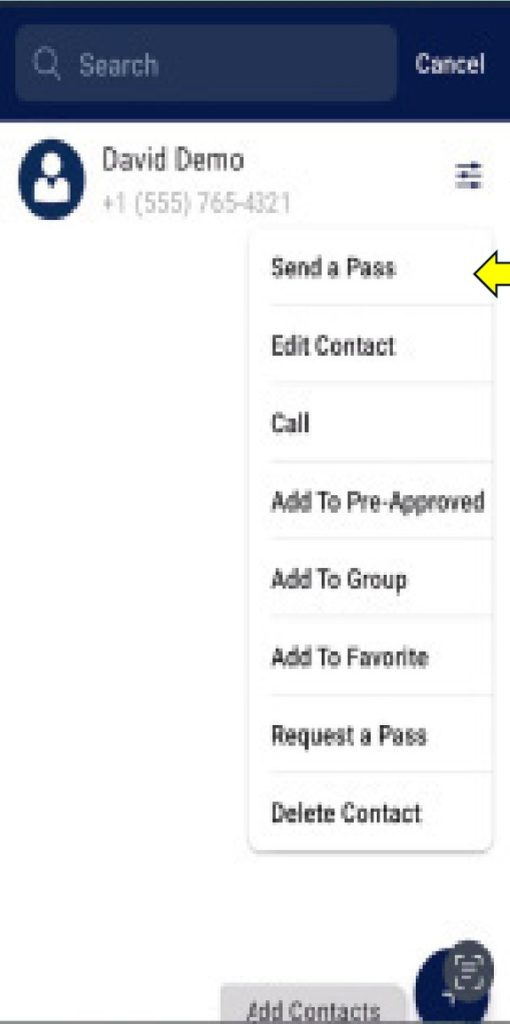
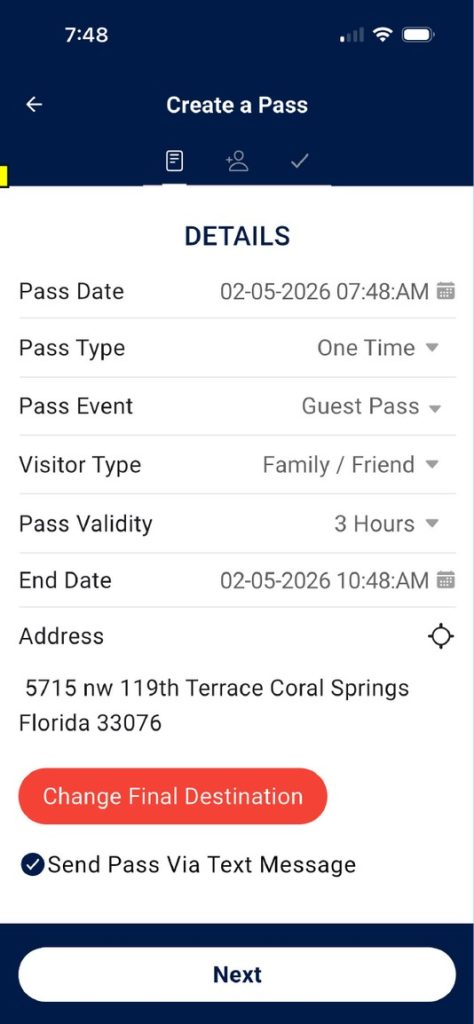
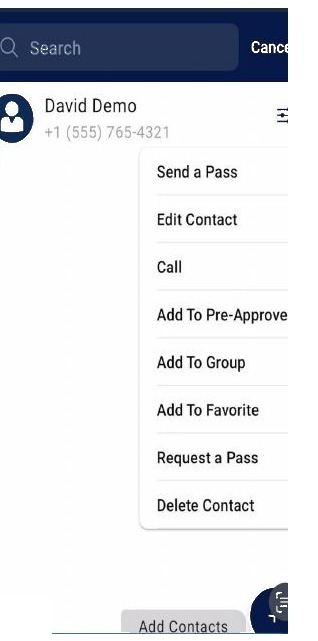
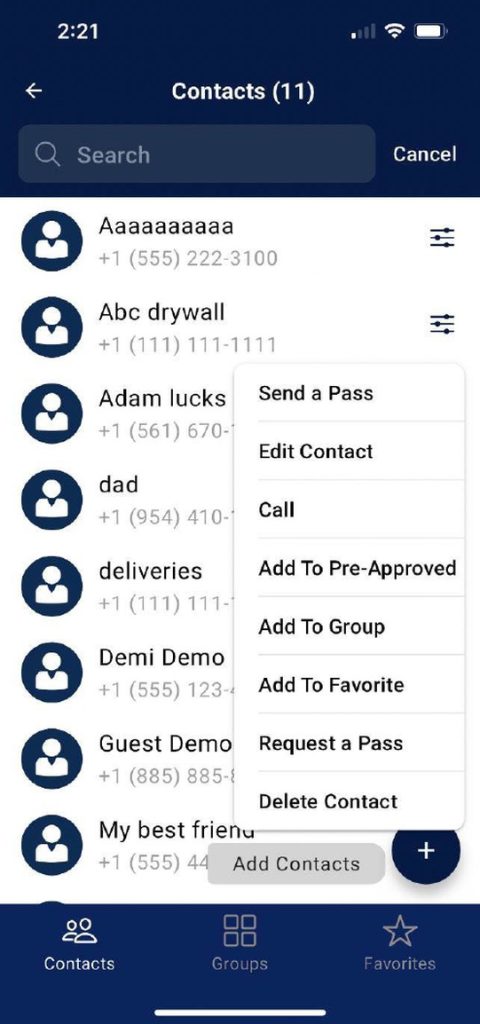
PRESS on the menu tab to the right of your contact. PRESS Send a Pass.
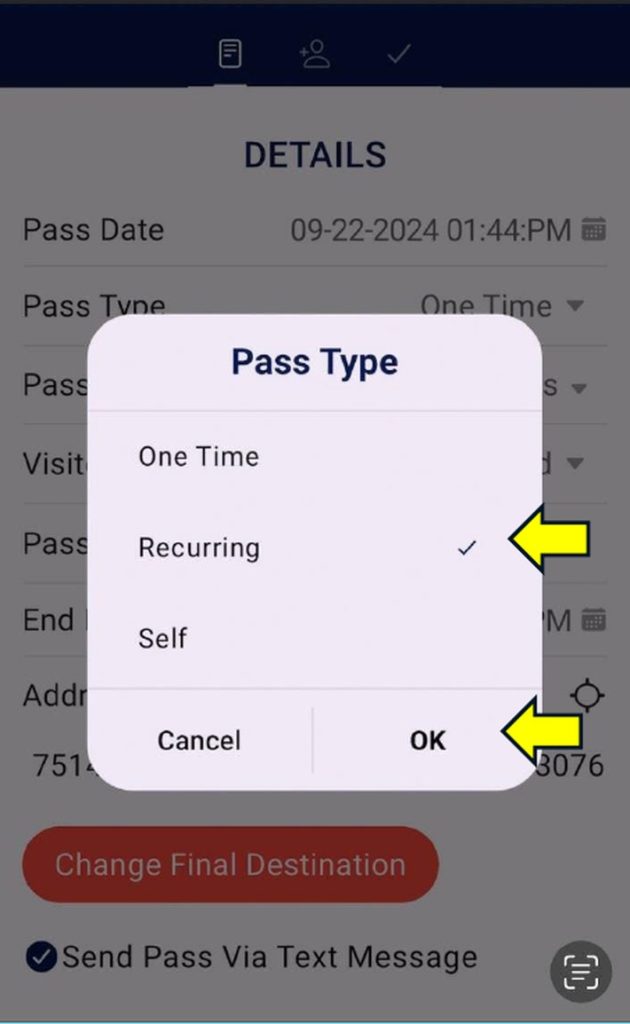
Pass type defaults to One-time. Pass validity can be 3 – 48 hours. This means that the pass can be used one-time only within the chosen time frame.
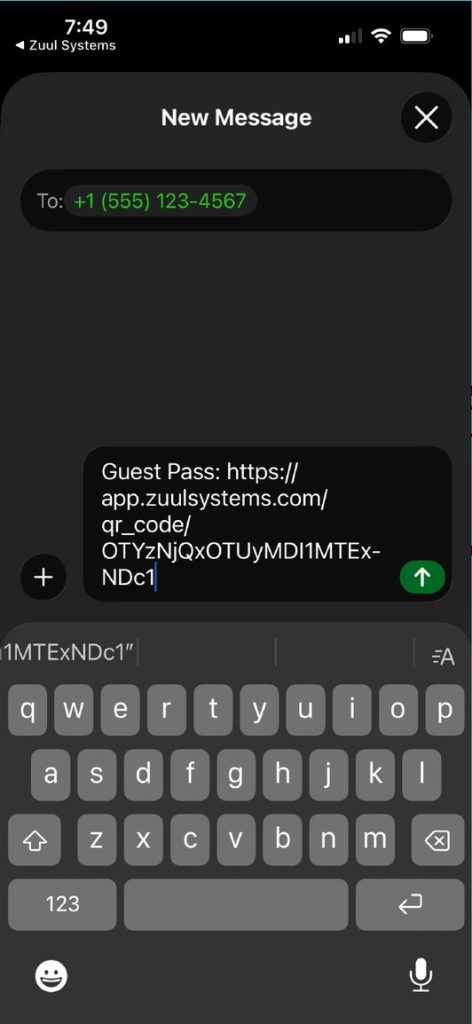
With a One-time pass we automatically give you the ability to send this pass by text message.
Create Your Own Recurring Permanent Pass
Add Yourself as a Contact
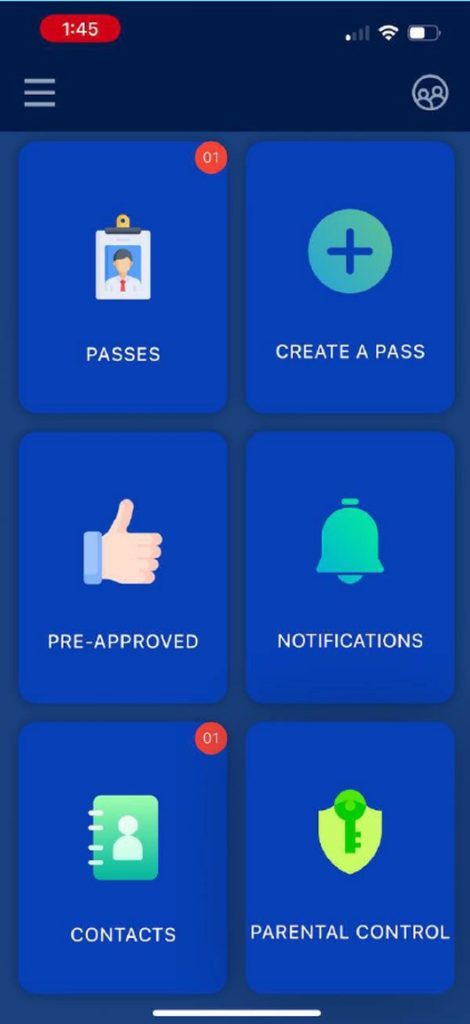
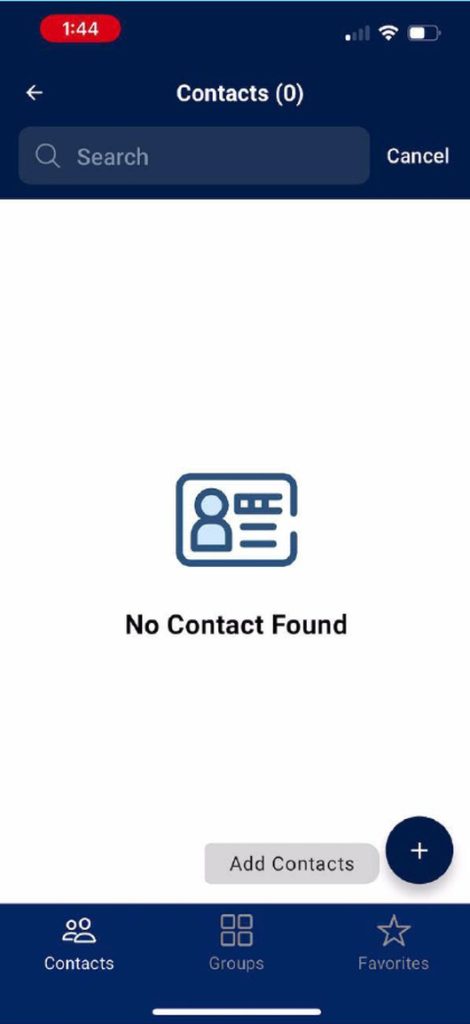
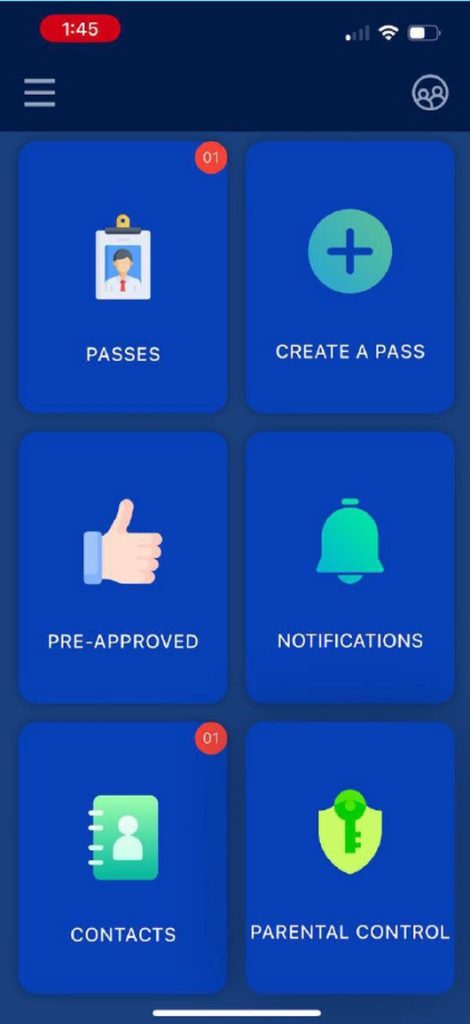
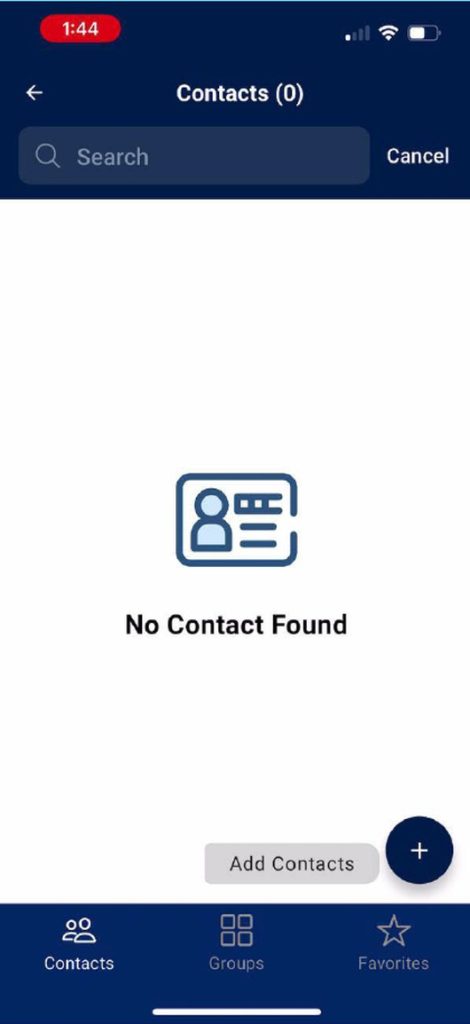
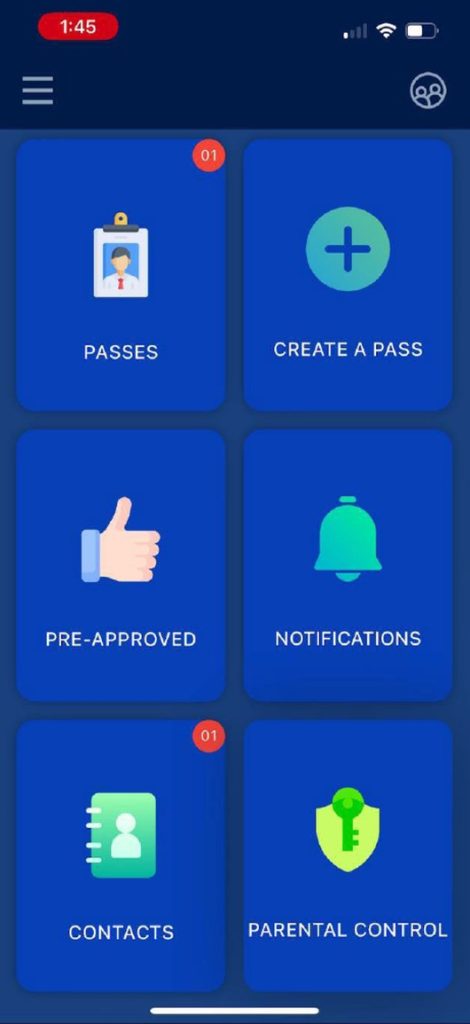
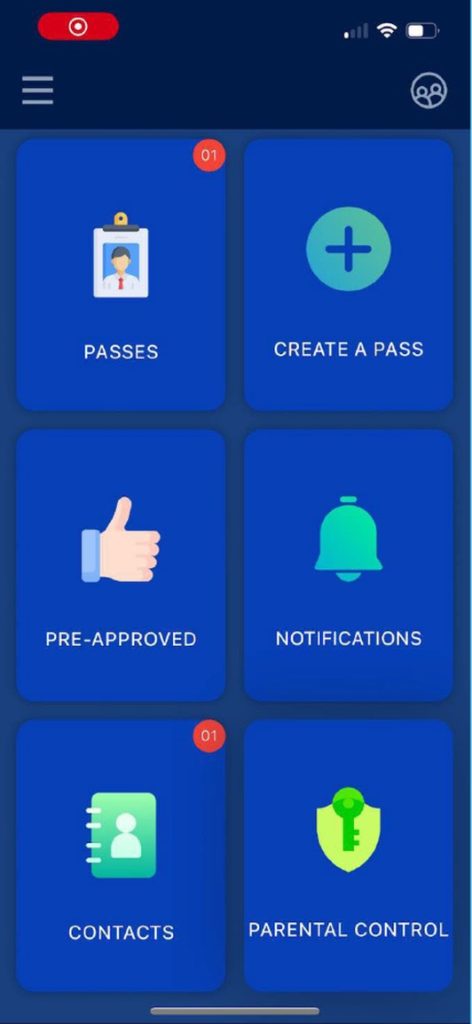
Open your ZUUL Systems App and Press on the “CONTACTS” Tile. In the bottom right corner, Press on the “+” next to Add Contacts.
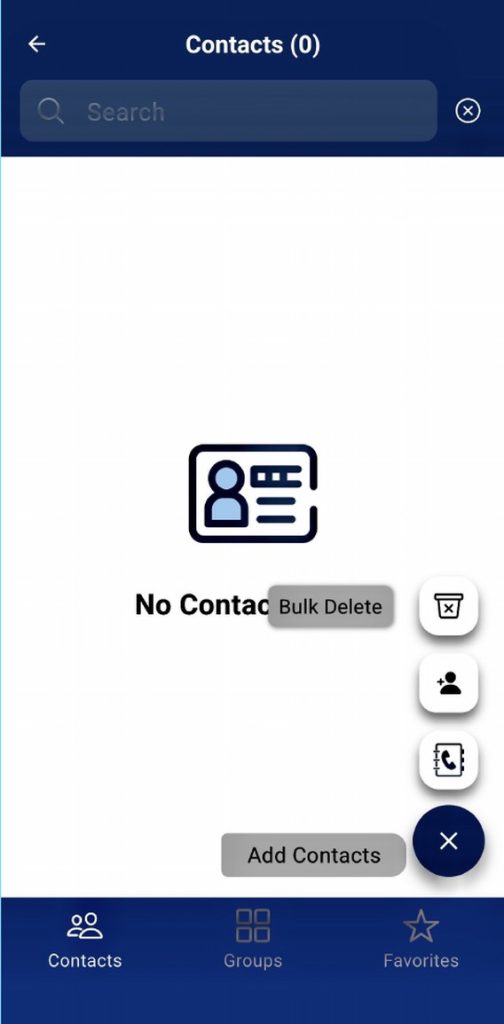
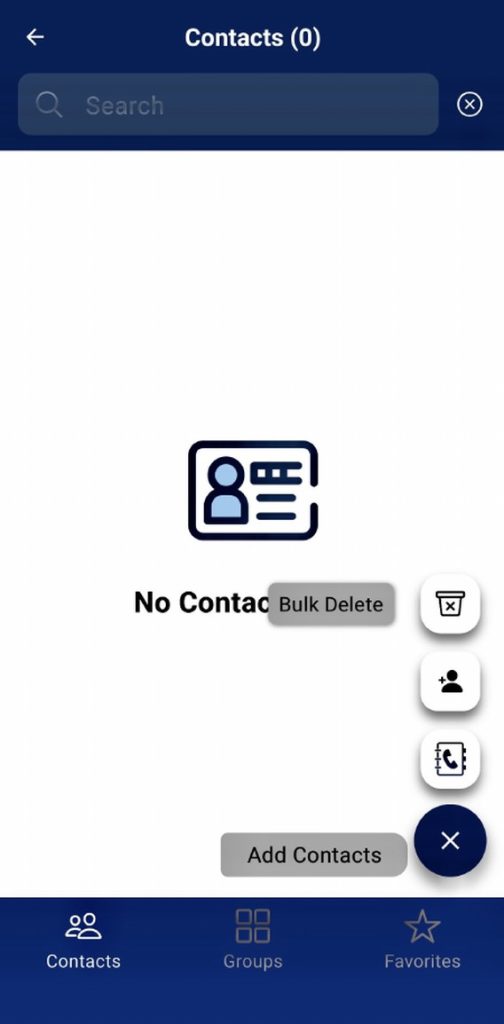
For this example, please select the middle option, “the head”, which allows you to create an entry manually. You can also import contacts by accessing the phone book on your device.
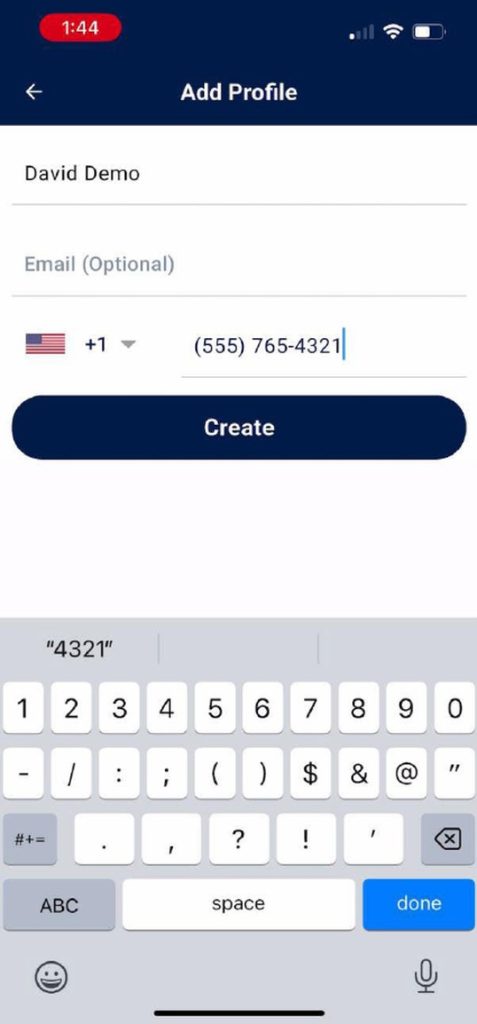
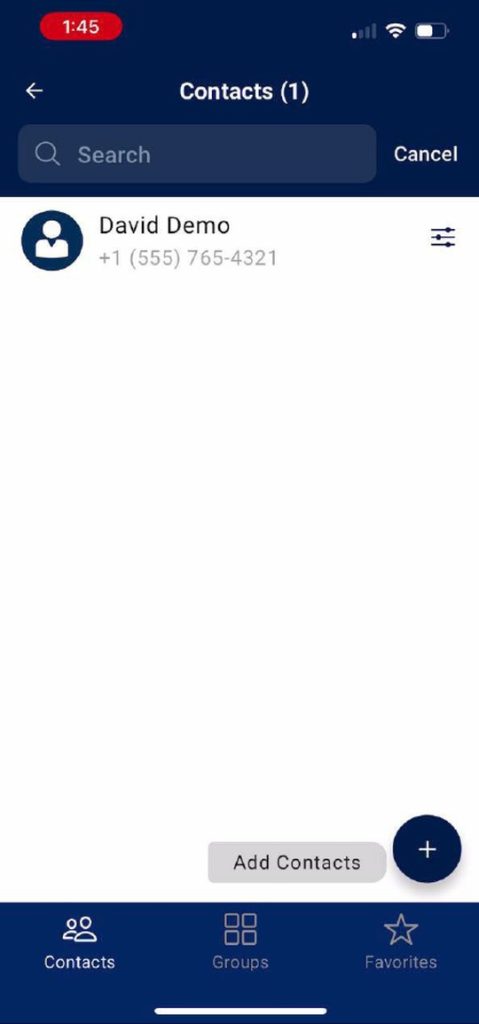
Type in your name and enter the phone number used to create your account. You do not need to enter an email; it is optional. Press “Create”.
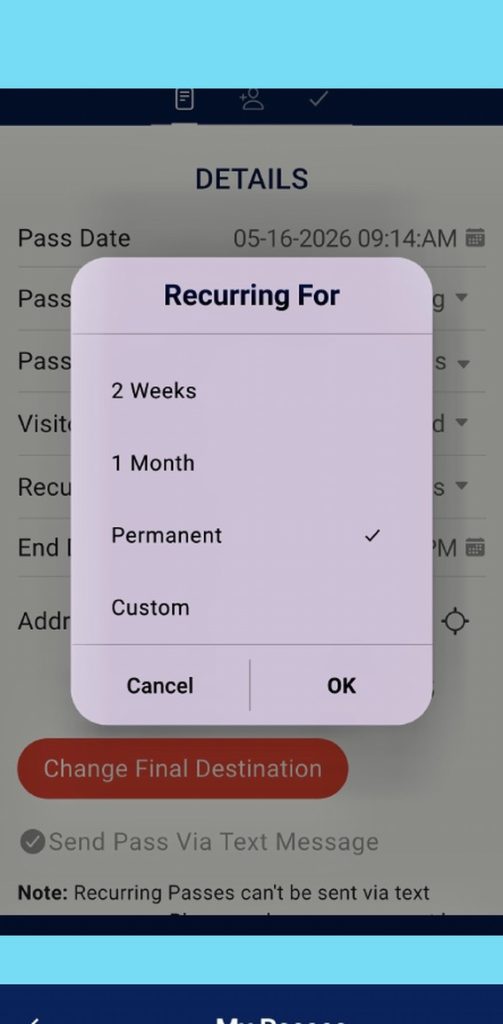
Send a Recurring Permanent Pass & Use Your QR Code
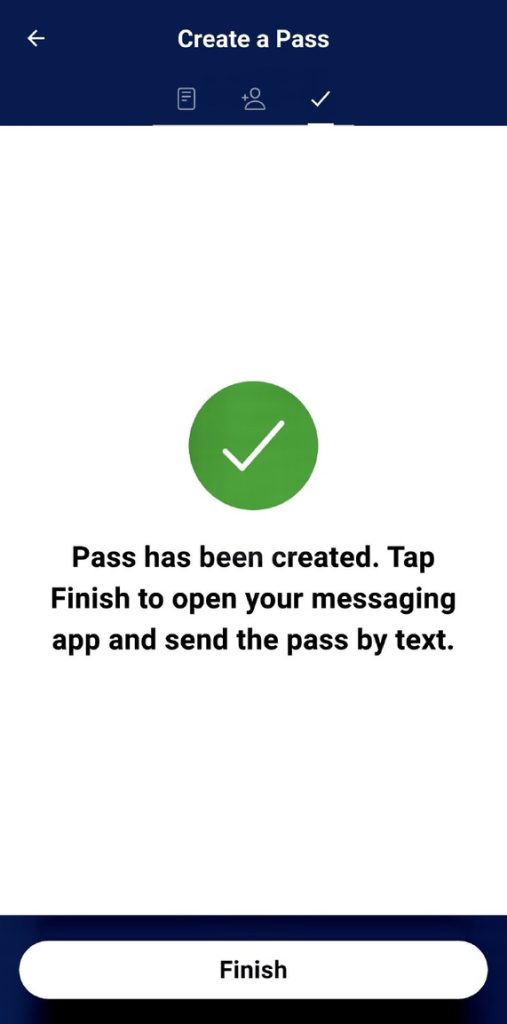
6You will be notified that your pass has been sent. Press “Finish”
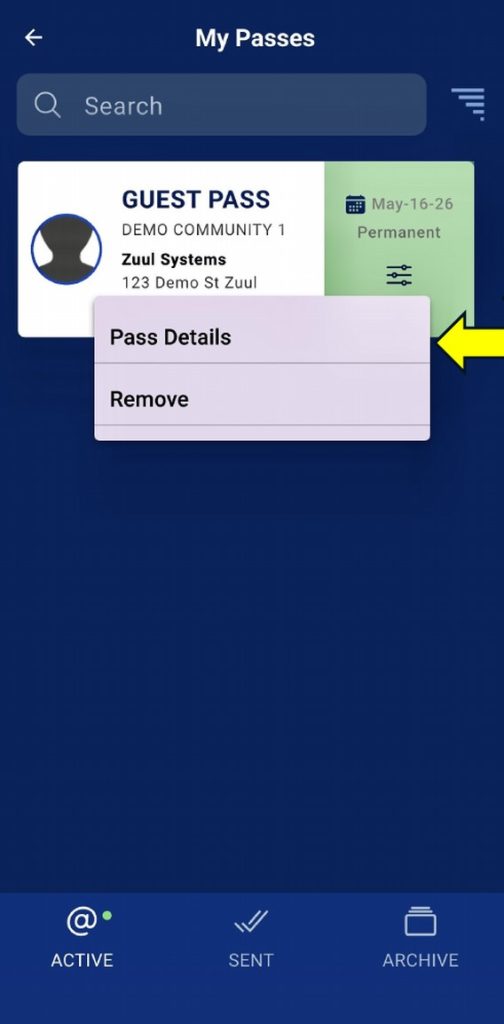
To use your pass, Press on the "PASSES" Tile on your dashboard, Press the "3 horizontal lines" under Permanent, and Select "Pass Details" to view your QR code.
Once scanned, that QR code is no longer valid. A new QR code will be available for use 15 minutes after the prior recurring pass QR code was scanned.
Your Pre-Approved Guest List
Adding Vendors, Deliveries, Family & Friends
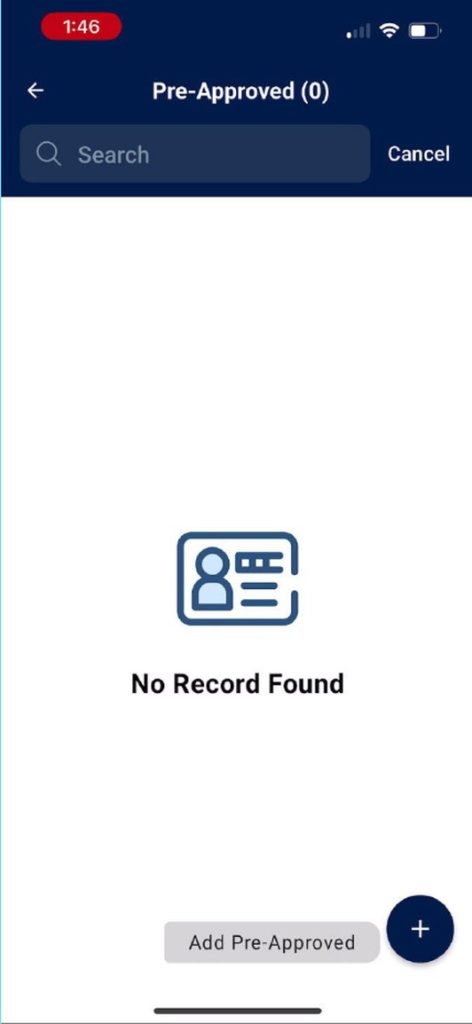
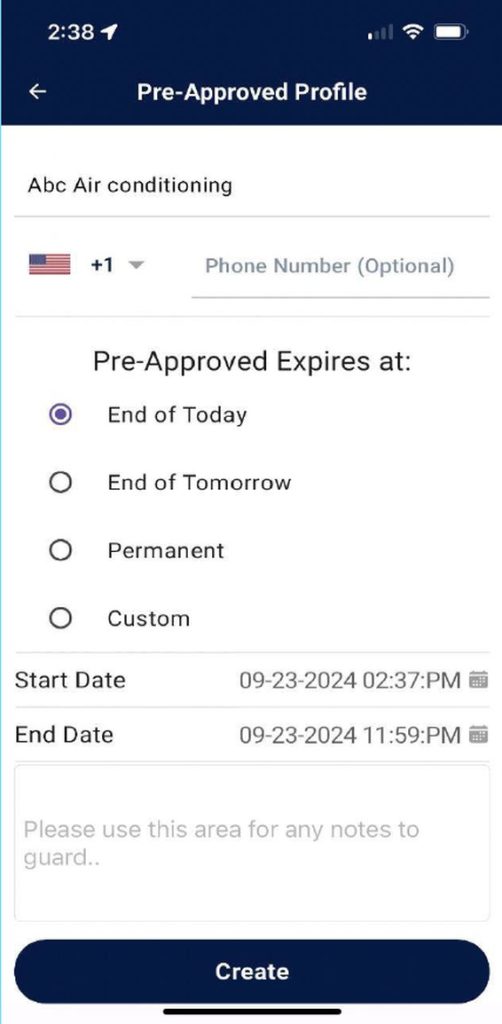
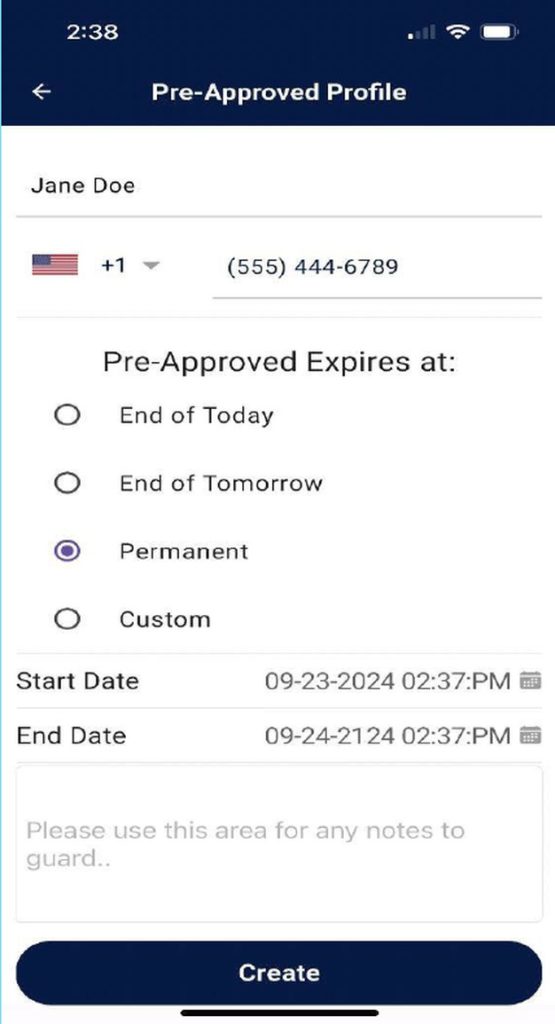
Open your ZUUL Systems app and Press on the “PRE-APPROVED” Tile. In the lower right corner, Press the “+” next to Add Pre-Approved.
For Vendors and Deliveries: Type in the name of the Company; example, ABC Air Conditioning. Always leave the phone number EMPTY. Select when you want the entry to automatically be removed from your list. Press “Create”.
For Family and Friends: Type in BOTH their NAME AND CELL PHONE NUMBER. Select when you want them to drop off your list or remain permanently. The end date will automatically adjust based on your selection. Press “Create”.
Managing Your Pre-Approved List
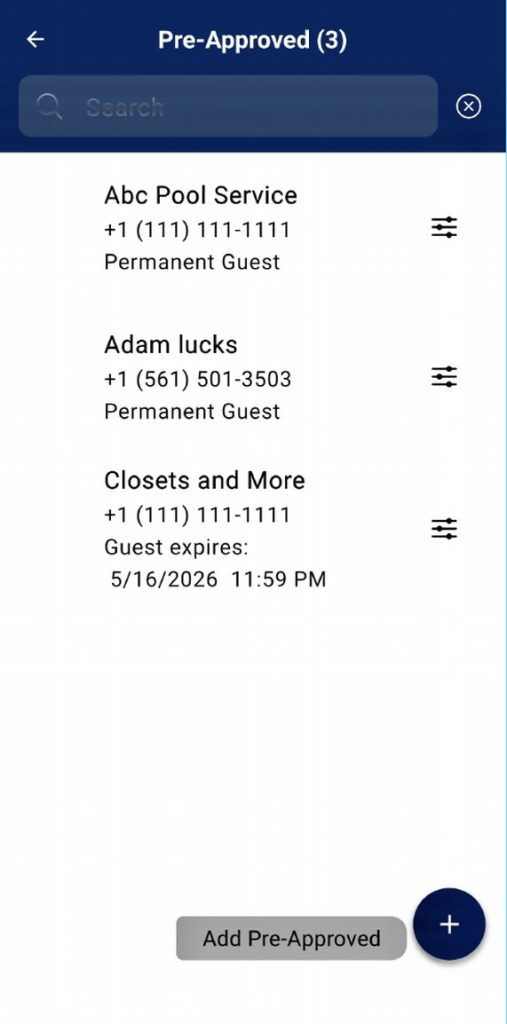
Your Pre-Approved list shows you your guest’s name, associated phone number, and expiration date. When the phone number is left empty, the result is 111-111-1111. When processing a guest with this generic phone number, the security officer is instructed to take a picture of this guest’s driver’s license.
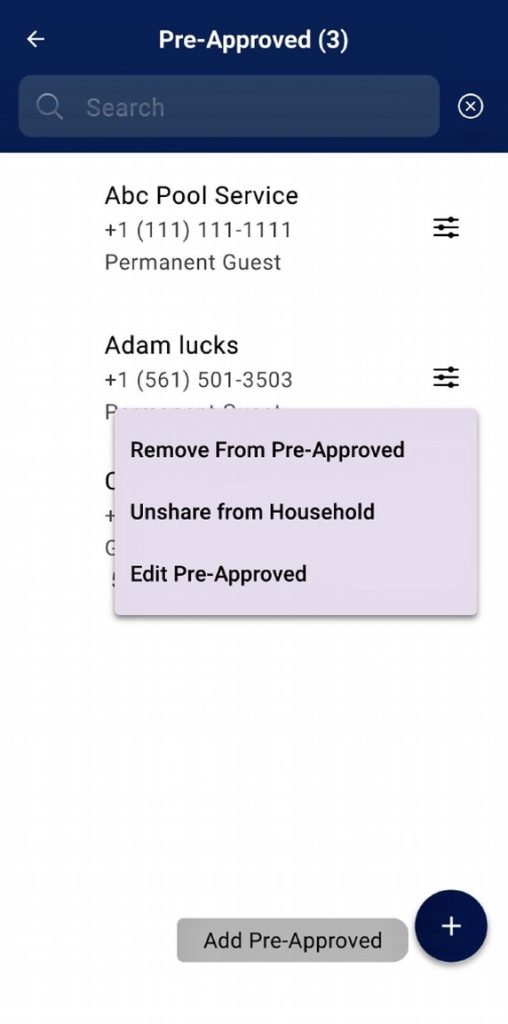
Press on the “3 horizontal lines” to the right of any entry to: manually remove that entry from your list, Unshare from Household (any household member that adds a guest to their pre-approved list automatically has it shared with all other household members), or Edit.
You can also add a Contact to your Pre-Approved list by going to your Contacts, Press on the “3 horizontal lines” next to their name, and Select “Add to Pre-Approved”.
ZUUL Key
ZUUL Key
ZUUL Key
Using the ZUUL Key
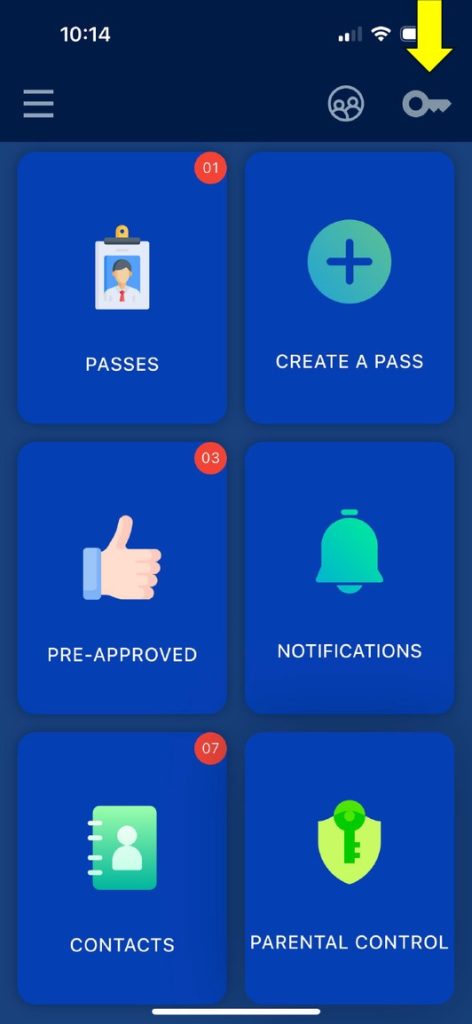
PRESS on the KEY in the upper right corner of your dashboard.
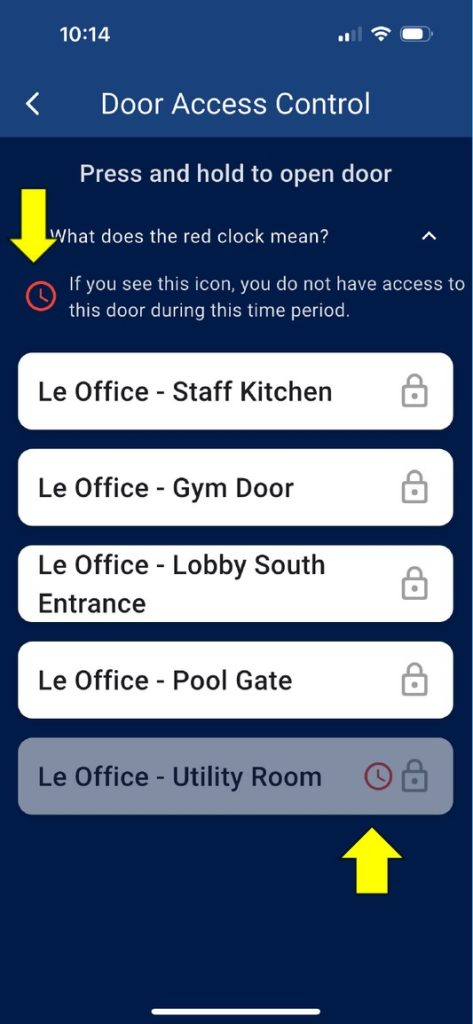
Note that a RED CLOCK means that you do not have access to that door at this time.
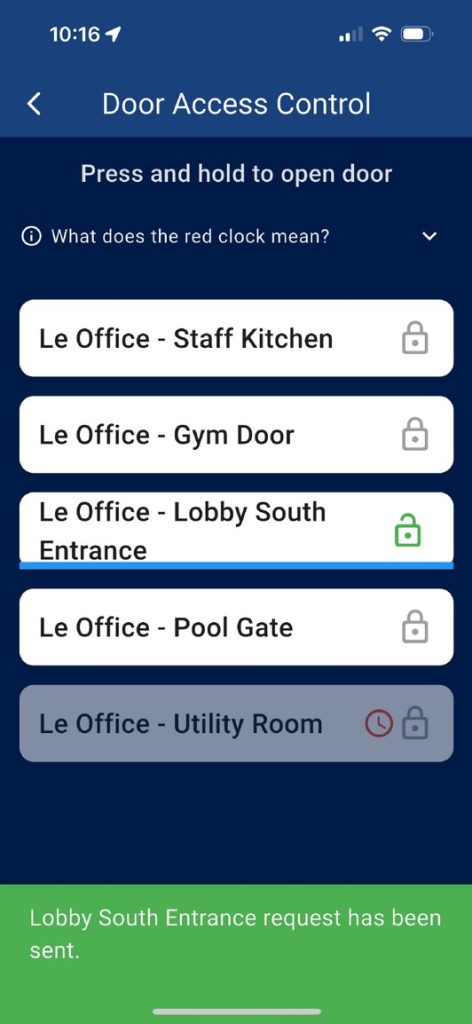
Press and hold your finger down on the door you want to open until you see the “Entrance request has been sent” message in green at the bottom.
Bulk Delete Contacts
Fixing Limited Access to Contacts
8Import contacts from phone book
Still stuck?
Include screenshots and your community name for faster assistance.